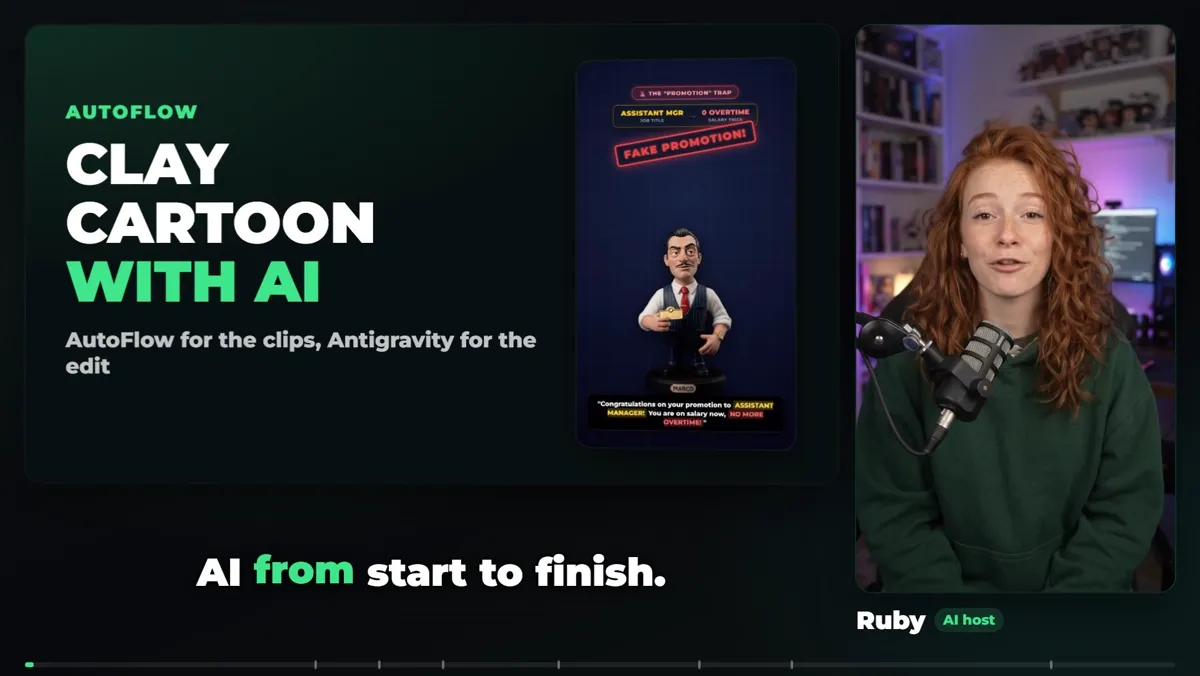
AI claymation is one of the easiest viral formats to make today: little clay characters, a short story, a stamp or a number on screen, and real voices. This guide shows the exact workflow behind a 74-second clay cartoon, "The Fake Manager Salary Trap", made with Google Flow, the AutoFlow Chrome extension and Google Antigravity, from the first prompt to the finished video in under 30 minutes.
Why AI claymation works
Clay characters read instantly on a phone, they feel handmade, and they can act out stories that would be awkward with real people: a boss who underpays, a landlord who keeps a deposit. The clay videos on our TikTok passed 860K and 140K views.
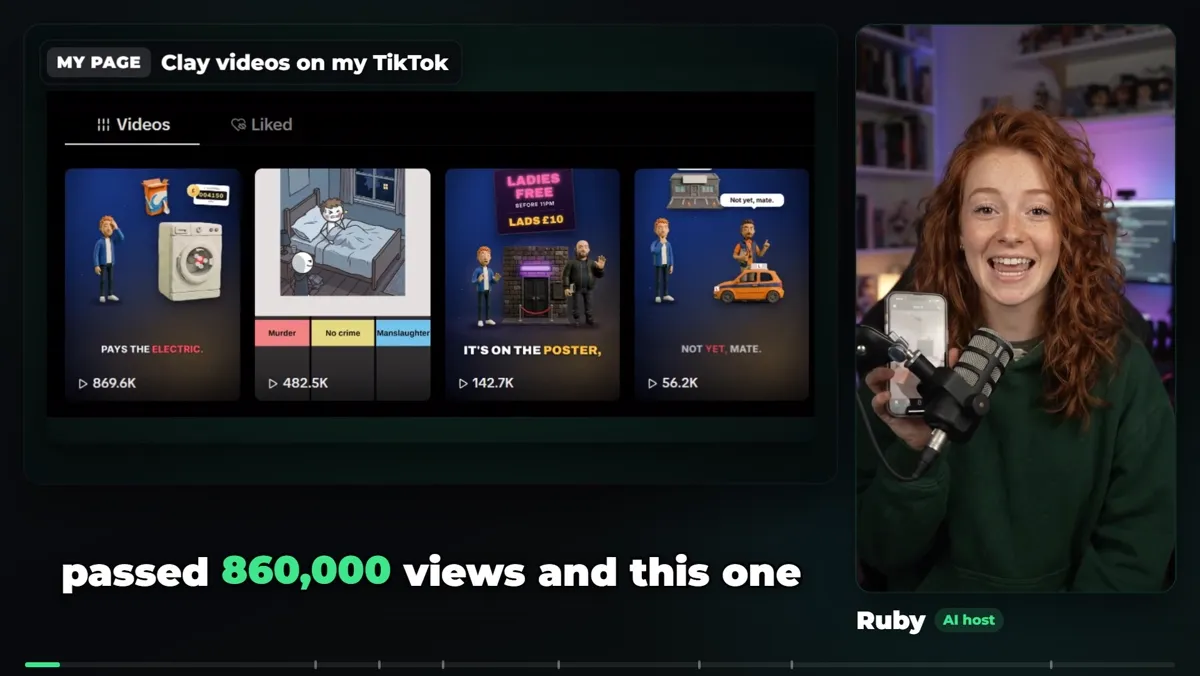
The clay videos on TikTok: 869.6K, 142.7K and more.
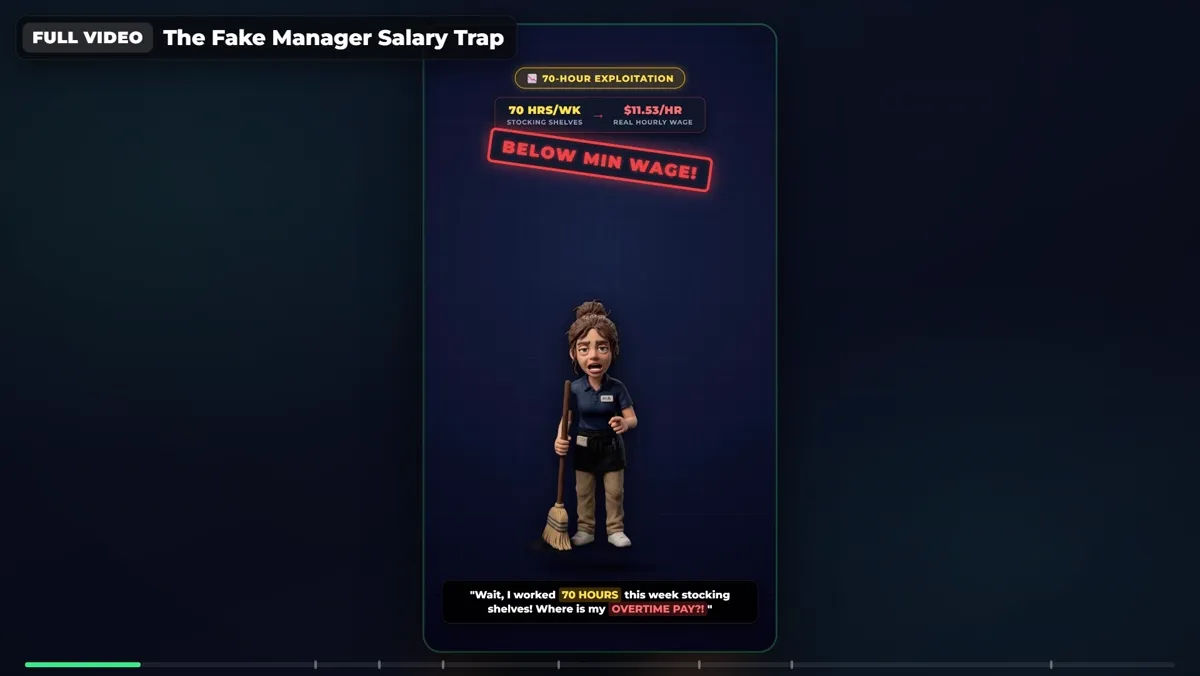
The finished 74-second clay cartoon.
Step 1: three clay characters in Google Flow
Make each character once in Google Flow and save it as a character: Marco the manager, Mia the worker and Sammy the lawyer. A saved character keeps the same face and clay style in every scene, which is what makes a series look professional. See how Flow's characters work.
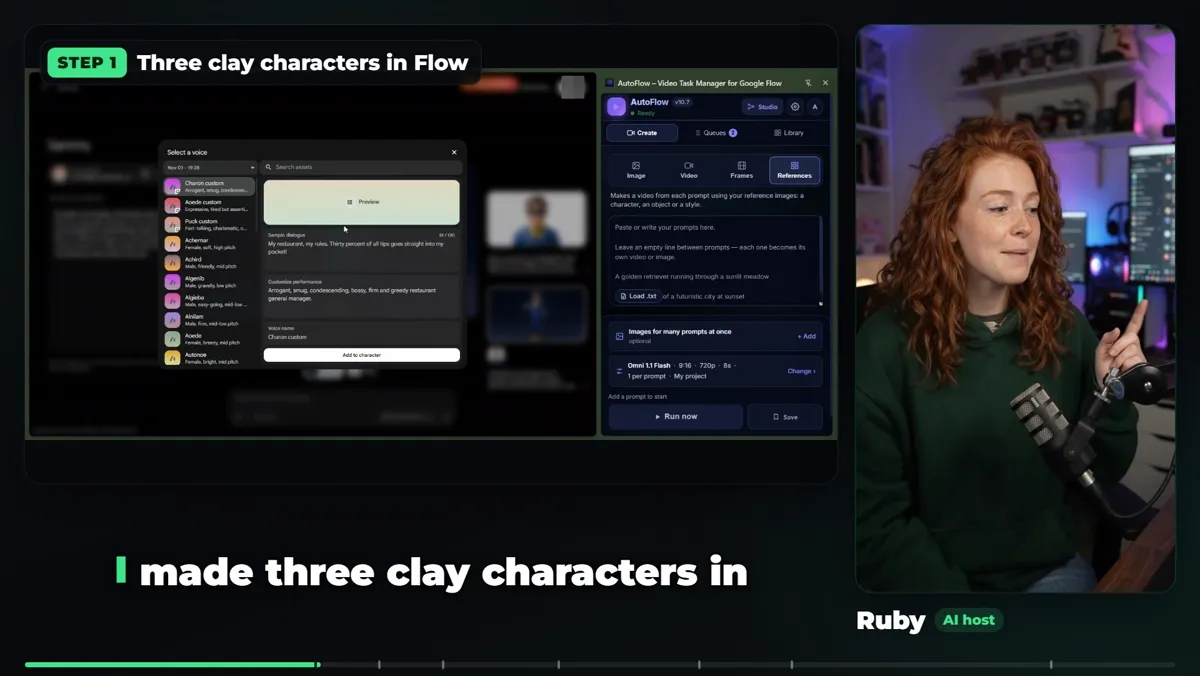
Three clay characters, saved once.
Step 2: the story and ten prompts
Ask Antigravity (or Claude, or ChatGPT) to write the story and ten prompts, one per scene. Each prompt names the character, the action and the exact line they say. Writing the line inside the prompt is what gives real lip-sync.
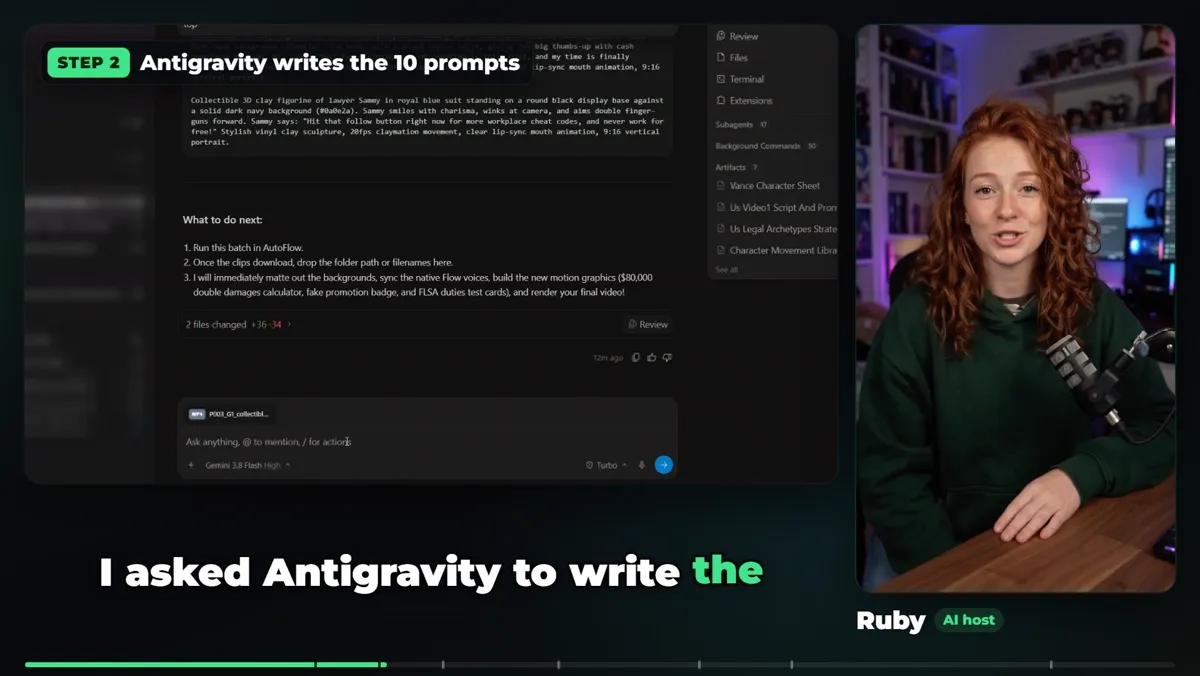
Antigravity writes the story and ten prompts.
Step 3: paste the prompts into AutoFlow
Paste all ten prompts into AutoFlow in References mode. AutoFlow matches Marco, Mia and Sammy to each prompt by name, so every scene gets the right character without uploading anything again.
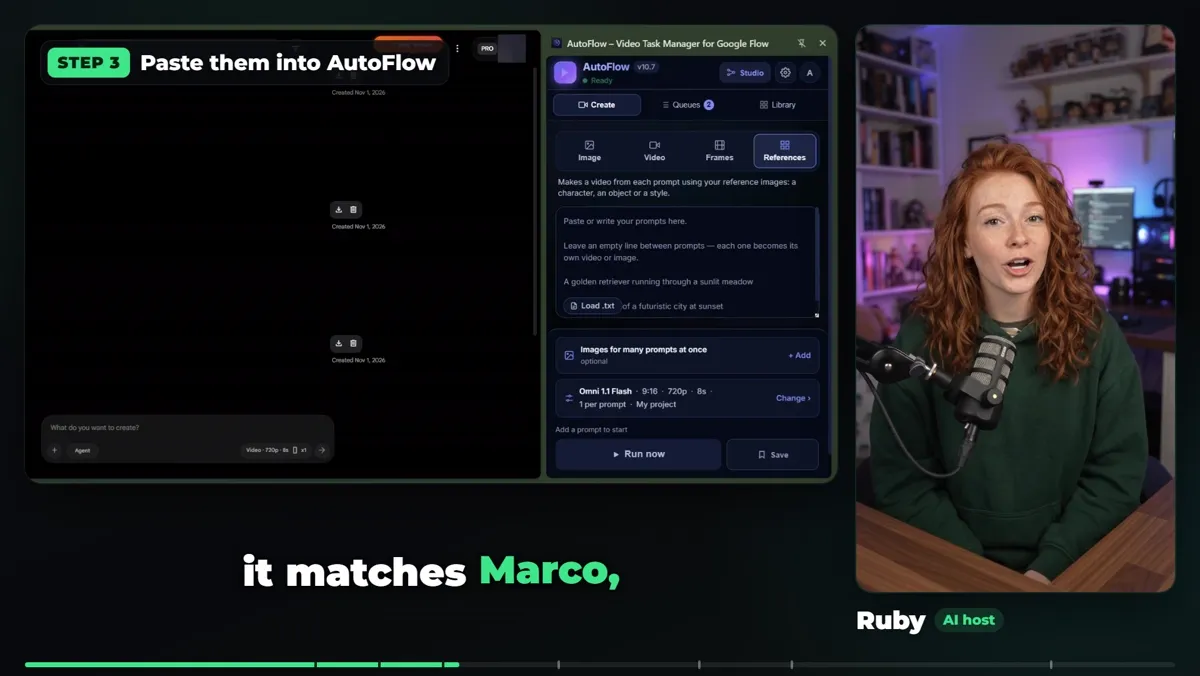
AutoFlow matches each character to the prompts that name them.
Step 4: settings and one click
Choose Omni 1.1 Flash, 9:16, 720p, 8 seconds and click Run 10 prompts. AutoFlow queues every prompt and keeps Flow busy while you walk away; this part took about seven minutes. (Omni 1.1 Flash leaves Flow on December 5, 2026. Use Omni 1.2 Flash; see Flow's new models.)
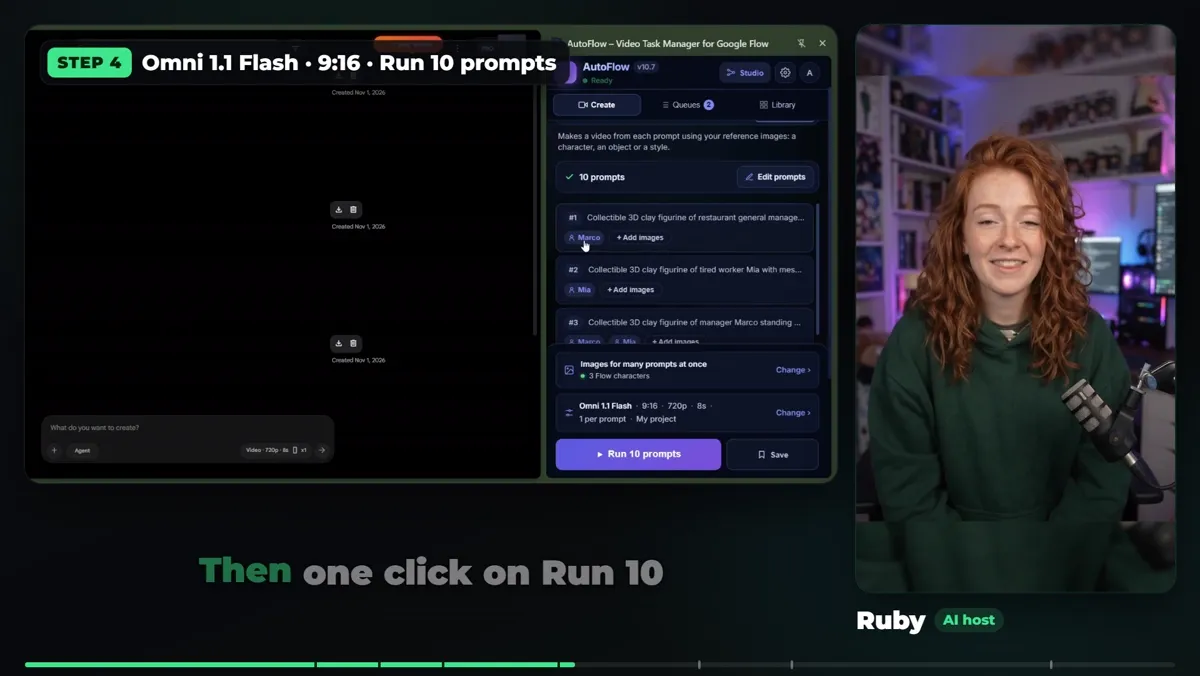
Omni Flash · 9:16 · 720p · Run 10 prompts.
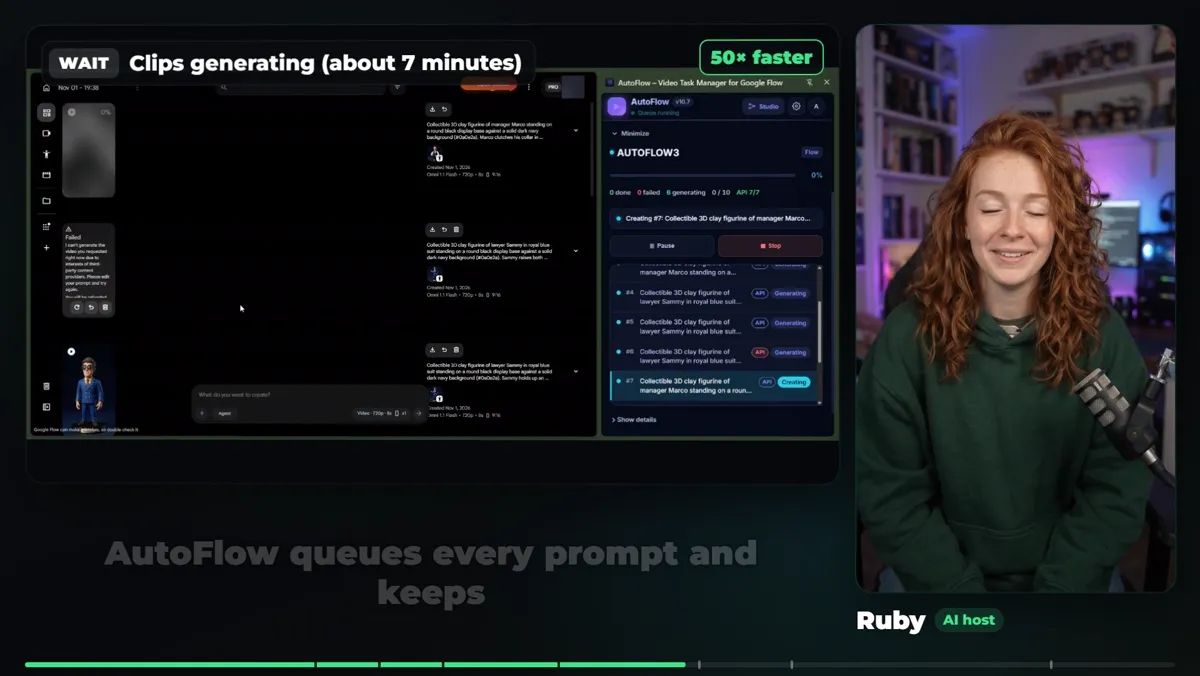
Ten clips generating, sped up.
Step 5: download all ten clips
When it finishes, open AutoFlow's Library, click Scan project, select all ten videos and download them in one click, numbered in order.
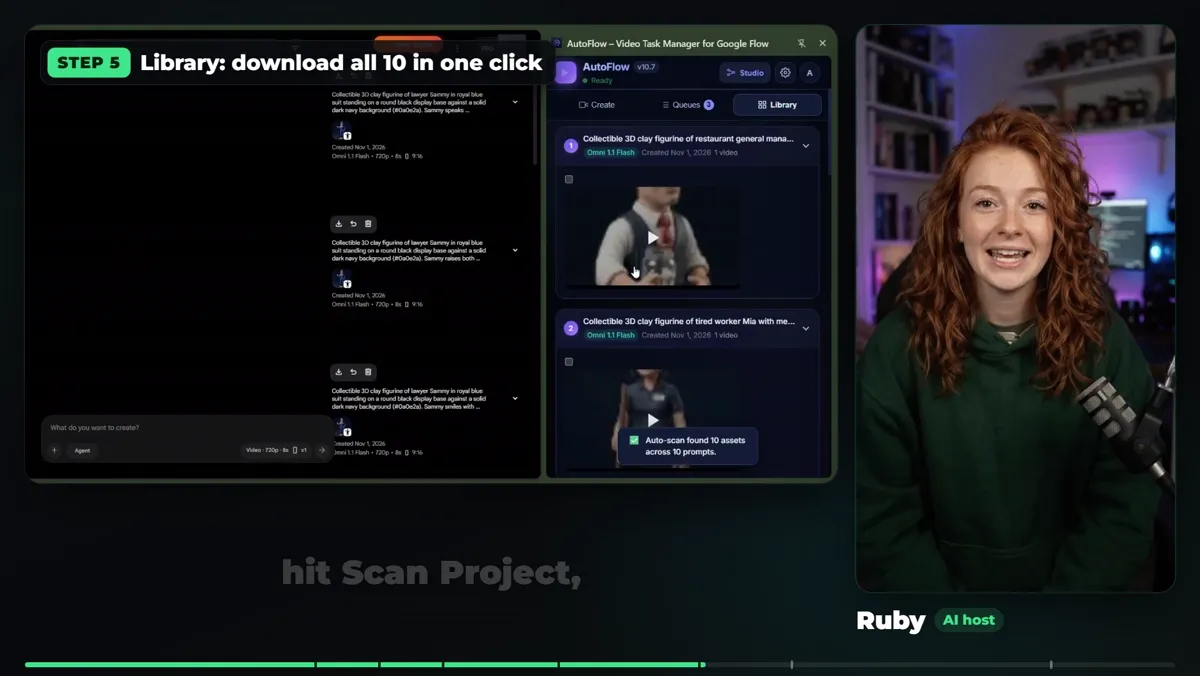
Library → Scan project → download all.
Step 6: Antigravity edits the video
Drag the ten clips into Antigravity and type one sentence: make the video with motion graphics. It checks every clip, cuts the clay characters off the background, keeps the Flow voices in sync, writes ten motion-graphics scenes in HyperFrames (title cards, floating numbers, red stamps), and renders the final video. No editing timeline and no keyframes.
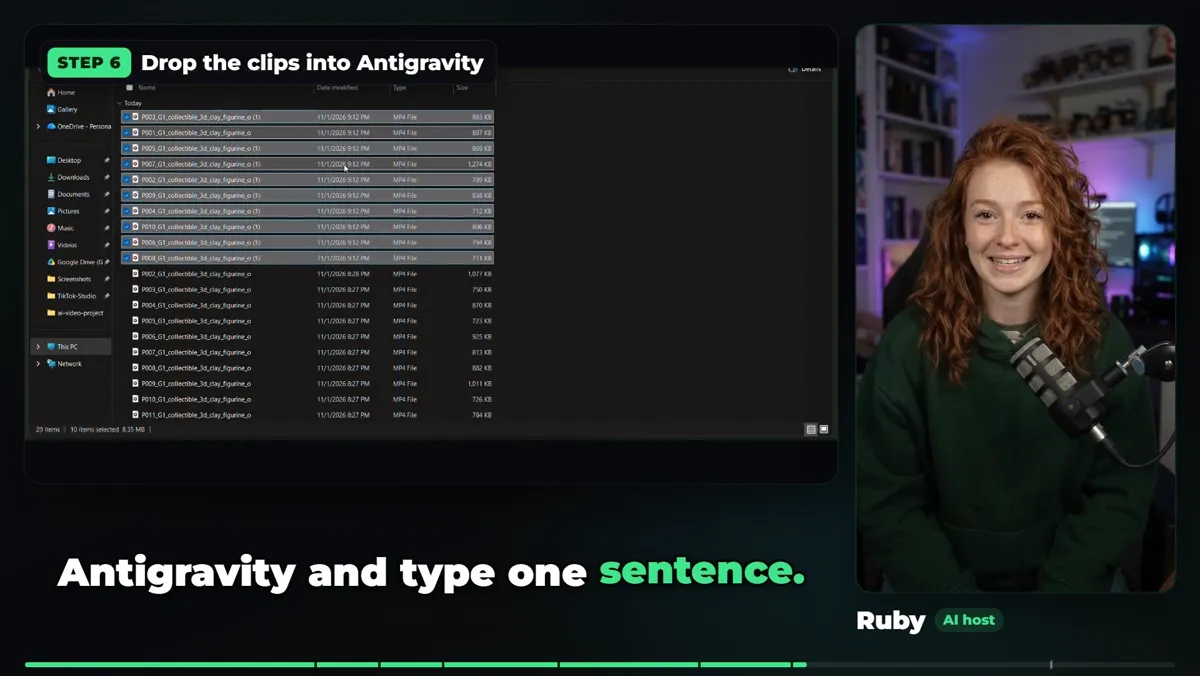
One sentence to Antigravity.
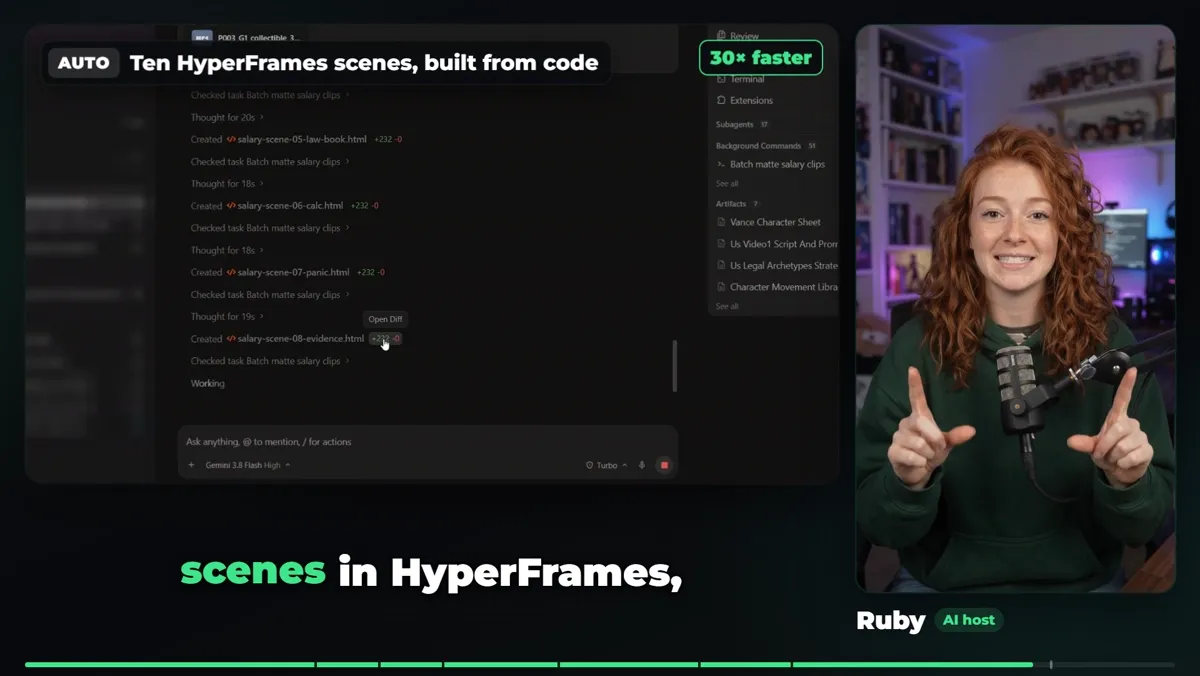
Ten motion-graphics scenes, built from code.
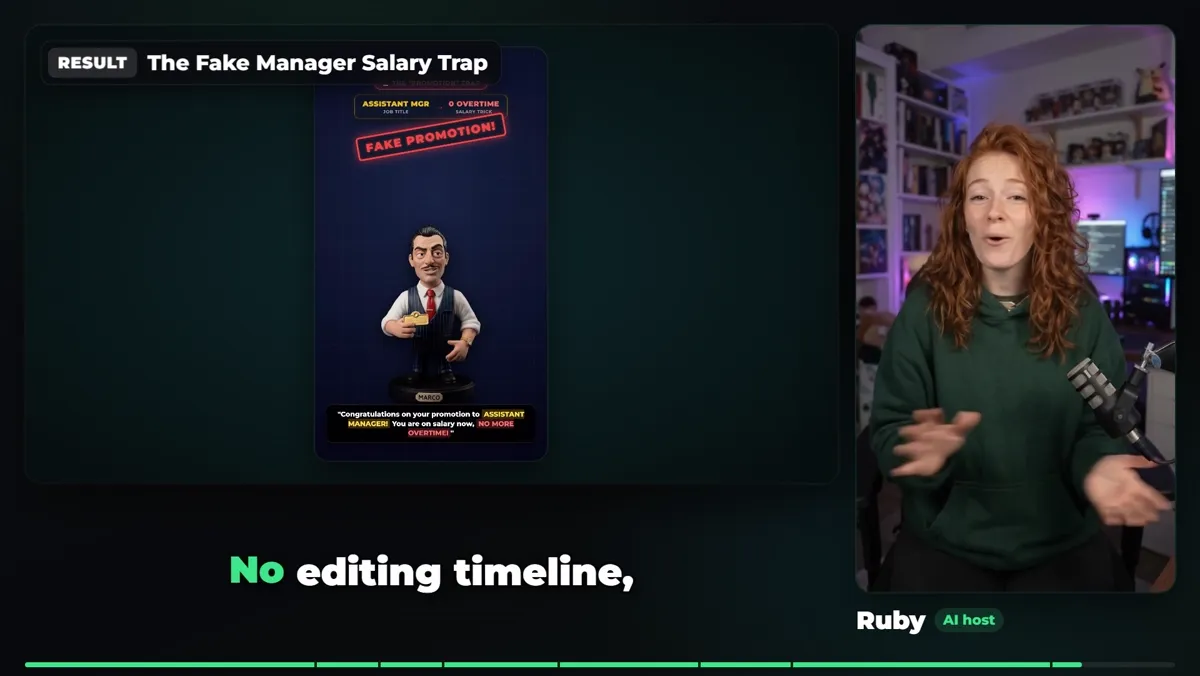
The result.
Two tips for cleaner clay videos
- Same plain background for every character. Cut-outs come out much cleaner for the motion graphics.
- Exact words in the prompt. Flow gives real lip-sync instead of mumbling and filler.
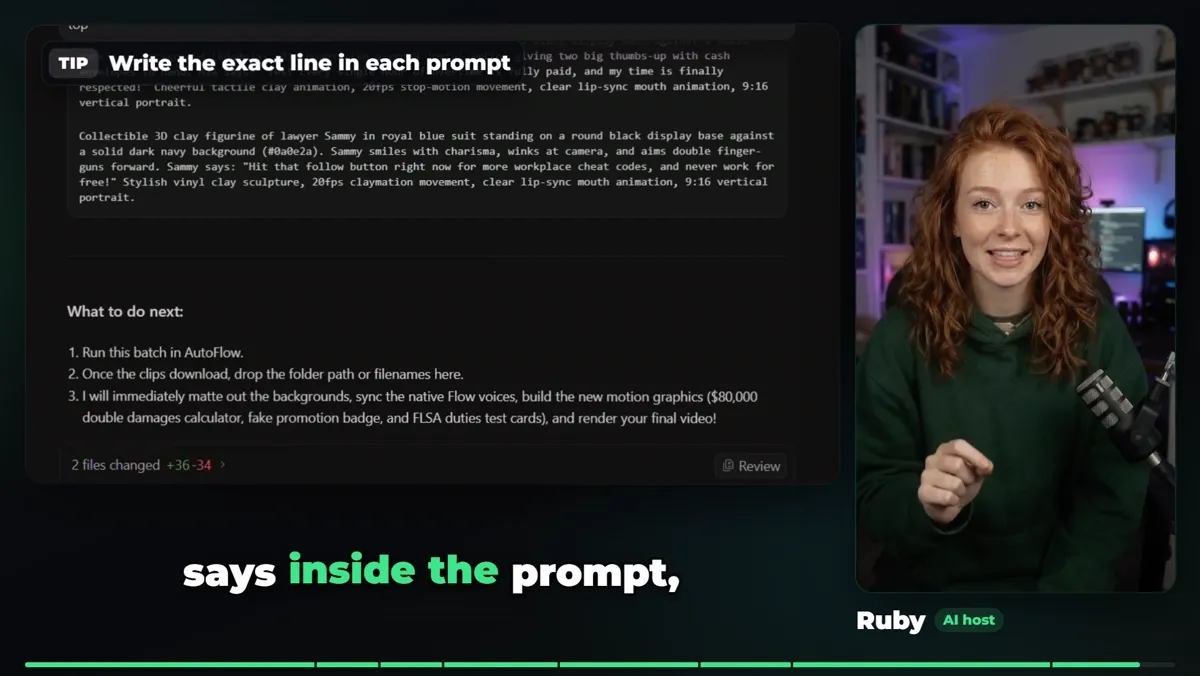
Write the exact line inside each prompt.
❓ Frequently Asked
How do you make claymation with AI?
Make each clay character once in Google Flow and save it as a character, write one prompt per scene that names the character, the action and the exact line, run all the prompts with AutoFlow, then let an AI agent such as Google Antigravity edit the clips with motion graphics. The whole video in this guide took under 30 minutes.
Which AI model makes the clay characters talk?
The clips here were made with Gemini Omni 1.1 Flash in Google Flow, 9:16, 720p, 8 seconds each, which gives real lip-sync when the exact words are in the prompt. Omni 1.1 Flash leaves Flow on December 5, 2026; Omni 1.2 Flash replaces it.
How do I keep the clay characters the same in every scene?
Save every character in Flow first, then use References (ingredients) mode in AutoFlow. AutoFlow matches each character to the prompts that name them, so Marco, Mia and Sammy look the same in all ten scenes.
Do AI claymation videos get views?
The channel's clay videos on TikTok passed 860K and 140K views. The format works because every scene is a short, readable moment with a character the viewer recognises, and the motion-graphics stamps and numbers make the story easy to follow with the sound off.
Do I need editing skills?
No editing timeline was used. Antigravity checked every clip, cut the characters out of the background, kept the Flow voices in sync, built ten motion-graphics scenes in HyperFrames and rendered the final video from one sentence of instructions.
What are the best tips for clean results?
Put every character on the same plain background so they cut out cleanly, and write the exact words each character says inside the prompt so Flow gives real lip-sync instead of mumbling.
Marco, Mia and Sammy are fictional clay characters, and Ruby is an AI presenter made in Google Flow. Flow uses your account's credits; this video was made on a Google AI Pro plan.