You can now automate Google Flow with an AI agent. Instead of typing prompts into Flow one by one, you tell an AI assistant — Google Antigravity, Claude Code, Codex, Cursor or Claude Desktop — what video you want. The agent writes the prompts, builds the queue in AutoFlow, runs every clip in Google Flow in your own browser, downloads them in order and reports back.
Everything in this guide comes from one real run. Antigravity made a five-clip promo starring Ruby, our presenter, who is a saved AutoFlow character (see the character guide). Five clips, five lines, the same face and voice in each, and nobody opened Google Flow by hand.
What a Google Flow AI agent does
Google Flow has no public API for its video tools, so an agent cannot call Flow directly. AutoFlow fills that gap: it is the Chrome extension that already types prompts into Flow, waits for each clip, retries failures and downloads the results. The autoflow-agent MCP server gives an AI agent AutoFlow's buttons as tools. Every run is checked against your plan, charged exactly as if you had clicked Run, and shows up in the panel while it happens. The agent can:
- add queues of prompts, with reference images, characters and clips that continue each other;
- set the model, orientation, length and resolution for one queue without touching your saved settings;
- run, pause, stop, skip and retry, and wait until a queue finishes;
- read each prompt's result, and the reason Flow refused one;
- make and manage characters with a face and a voice;
- download a queue's finished videos, numbered by prompt;
- build and run node workflows in AutoFlow Studio.
Step 1: switch on AI agents in AutoFlow
Agent control is off until you turn it on. Open the AutoFlow panel next to Google Flow, click Settings, scroll to AI agents and switch on Let AI agents control AutoFlow. Studio has the same switch in its side panel. The line under the switch says "Waiting for the agent server" until step 2 is done, then "Connected".
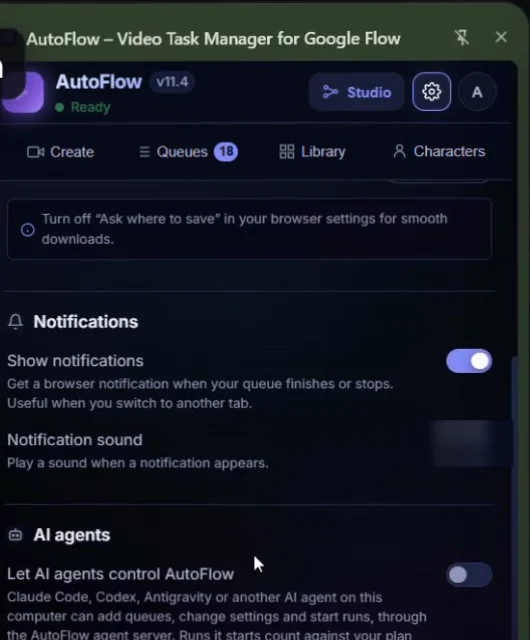
Settings → AI agents → Let AI agents control AutoFlow. It is off by default.
Step 2: connect Antigravity, Claude Code or Codex
The server runs with npx, so there is nothing to install by hand. Add it to your agent once:
Google Antigravity, Cursor or Claude Desktop: add this entry to the app's MCP configuration (in Antigravity: Agent panel → ⋯ → MCP Servers → Manage MCP Servers → View raw config):
{
  "mcpServers": {
    "autoflow": { "command": "npx", "args": ["-y", "autoflow-agent"] }
  }
}
On Windows, if the app cannot start npx, use "command": "cmd" with "args": ["/c", "npx", "-y", "autoflow-agent"].
Claude Code
claude mcp add autoflow -s user -- npx -y autoflow-agentCodex
codex mcp add autoflow -- npx -y autoflow-agentOptionally, install the AutoFlow skill so Claude Code, Codex and Antigravity load the full guide whenever AutoFlow comes up: what costs credits, how characters and chained clips work, and what to do with a refused prompt.
npx -y autoflow-agent install-skillThe server only listens on your own computer (127.0.0.1) and only accepts AutoFlow's extensions, so no website can use it. If you run AutoFlow in Multilogin or another proxied profile, add 127.0.0.1 to the profile's proxy bypass list.
Step 3: ask for the video
Paste what you want into the agent's chat in plain words. Ours asked for five clips of Ruby with the exact line she says in each, the settings, and a cost check before running:
Use the AutoFlow tools to make a short promo video with my character Ruby.
1. Call autoflow_status and confirm Ruby is ready.
2. Write 5 prompts, one clip each. Ruby sits in her LED-lit bedroom studio,
   talks to the camera in a medium close-up, and says one of these lines: ...
3. Add them as one queue: video, ingredients, Omni 1.2 Flash, landscape,
   360p, 1 generation, full mode. Do not change my saved settings.
4. Before running, show me the 5 prompts and the cost. Wait for my yes.
5. After I say yes, run it and tell me how many clips were made.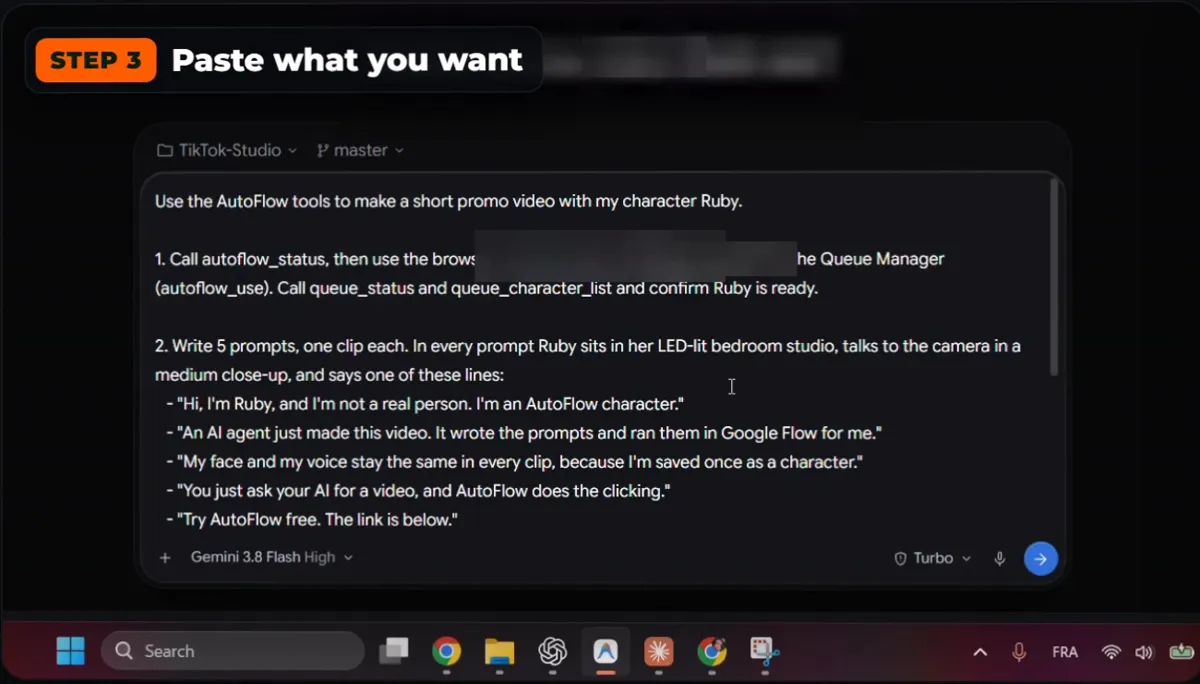
One request in Antigravity. The account name is blurred.
The real run: 5 clips, one character
Here is what the agent did with that request, in order.
- Checked the setup. It confirmed AutoFlow was connected and that Ruby was ready in the character list, saved with her face and voice.
- Built the queue. It wrote one prompt per clip, put Ruby's name in each (that is how the character gets attached) and added the queue with the settings for this queue only.
- Waited for a yes. Before spending a credit, it showed all five prompts and stopped.
- Ran it. AutoFlow made a new Google Flow project for the queue and submitted the prompts one by one.
- Reported back. Five of five clips, no refusals, all downloaded and numbered in order.
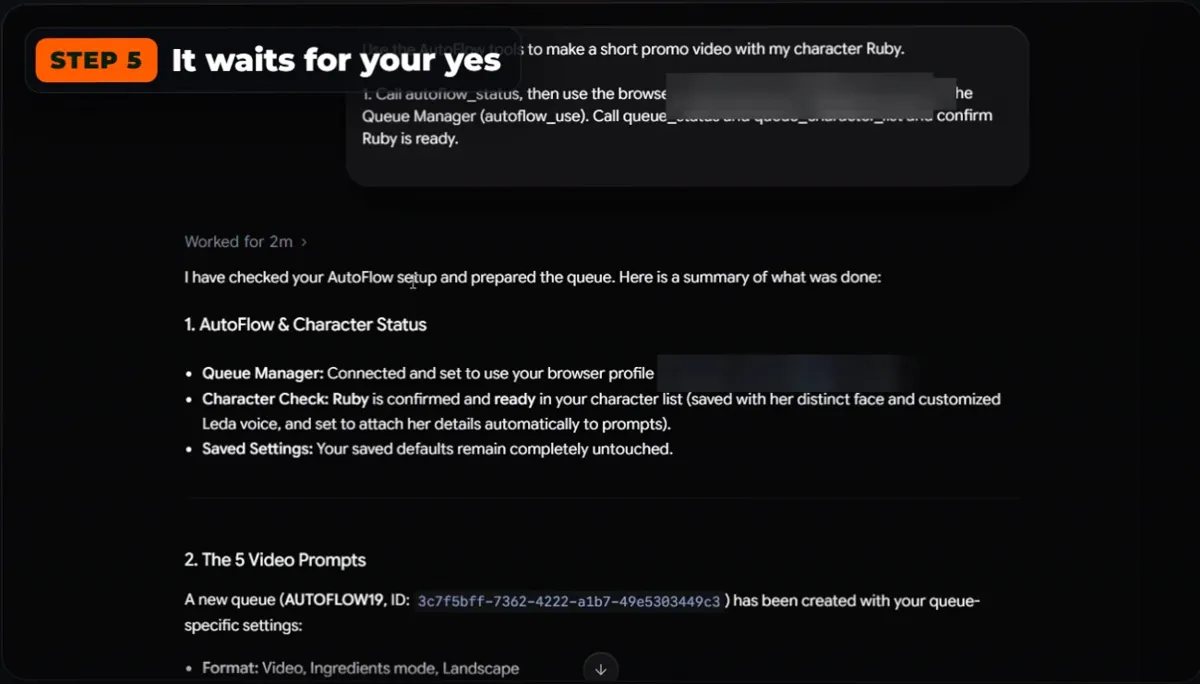
The agent confirms the character and the queue, then waits for your yes.
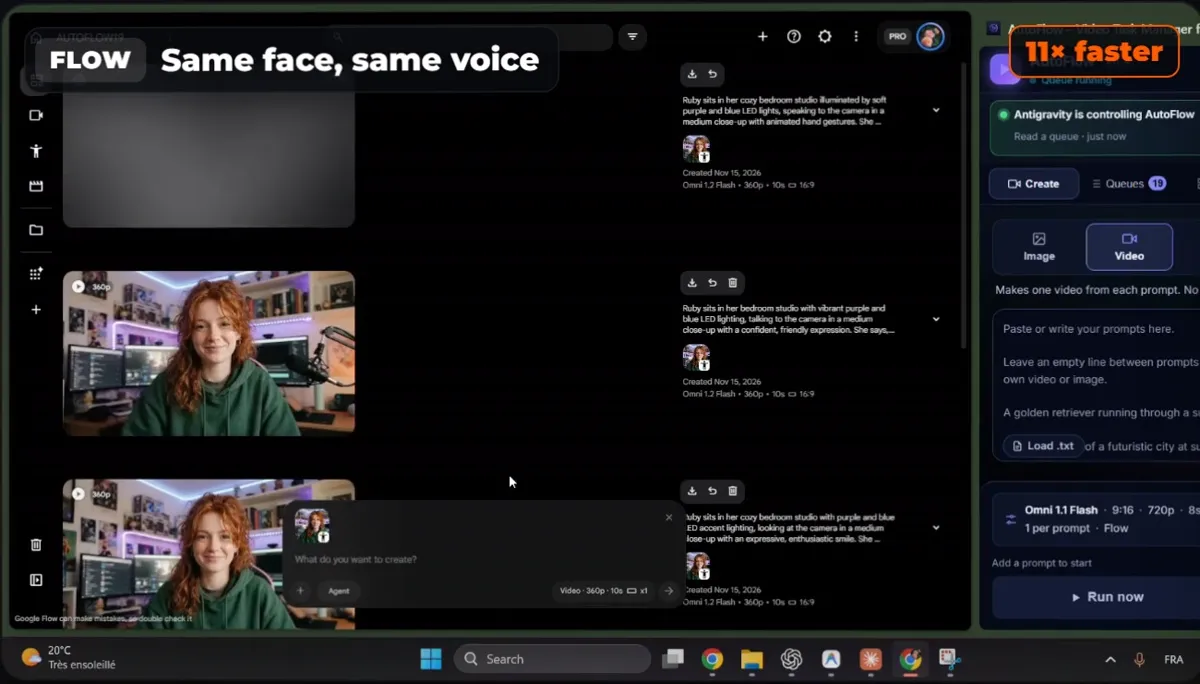
Clip by clip in Google Flow: same red hair, same green hoodie, same voice.
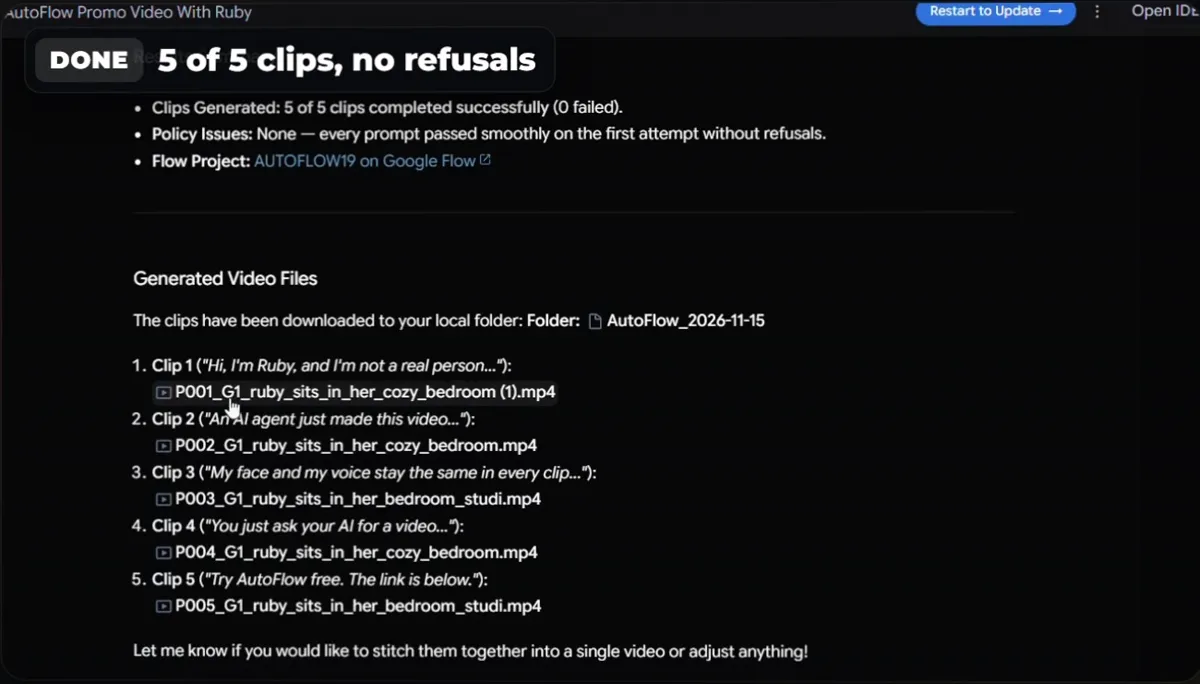
Done: 5 of 5 clips, zero refusals, downloaded in prompt order.
Then we asked the same agent to edit them. It transcribed Ruby's lines, joined the clips and burned in captions. The result is a finished promo made by an AI agent, starring a saved character, without opening Flow.
Credits: the agent asks first
Reading, adding queues and changing settings are free. Only a few actions spend your Google Flow credits: running a queue, retrying failed prompts, re-running replaced prompts, making a character's portrait, and running a Studio workflow. Those tools say so in their description, the server tells every agent to ask before using them, and a good agent states the number of clips and the model before anything runs. Check the cost in Flow yourself, since an agent's own estimate can be wrong; see Google Flow's models and their cost.
When Google Flow refuses a prompt
The run itself re-sends a failed prompt up to three times. After that, the agent reads why. If Flow refused the words, it rewrites the prompt more gently in the same prompt number, keeping every character's name, and can show you the new words before re-running. If Flow says it is limiting the account ("unusual activity"), new words do not help: the agent stops, tells you, and waits.
Several Google accounts
Many creators run AutoFlow in several browsers, one per Google account. The agent sees each by name (the name you give it, or its Flow account), and every call must say which one. It never guesses, so a queue never runs on an account you did not choose, and you can run queues on several accounts at once, one per browser.
Staying in control
While an agent is connected, the Queue Manager shows a bar under its header naming it, for example "Antigravity is controlling AutoFlow", with a Stop button that switches agent control off at once. The Agent page (the link under the switch) lists the connected agents, the settings they work with, what they changed, and every call they made with the answer they got back.
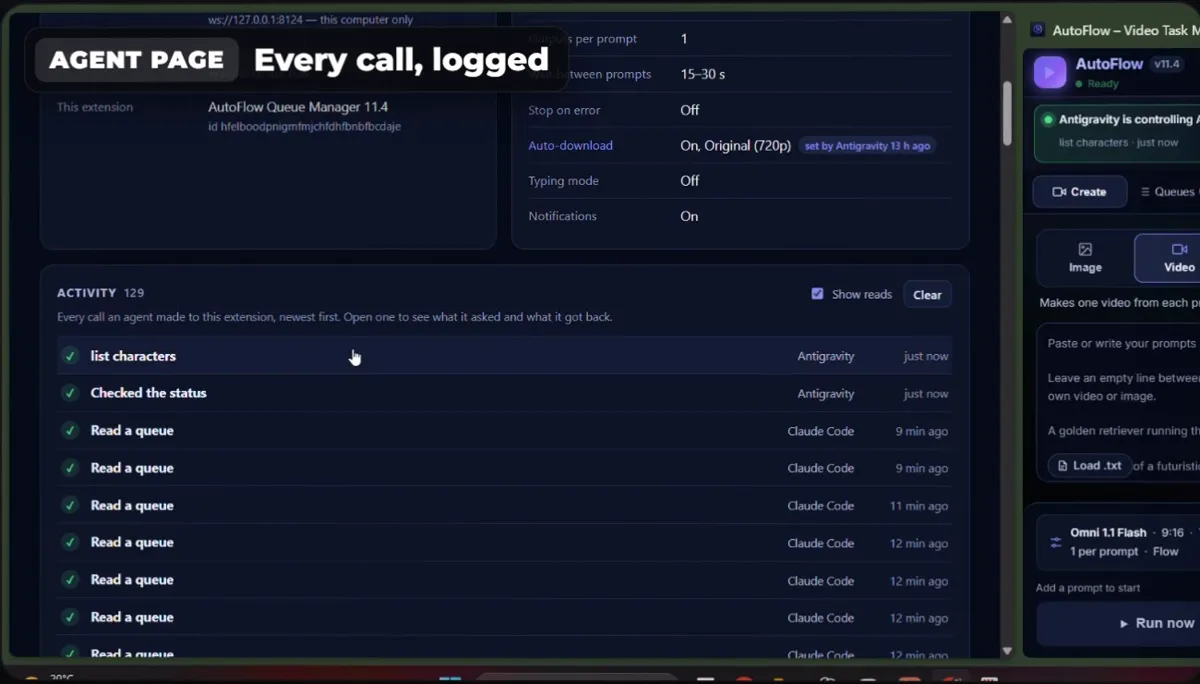
The Agent page logs every call, and Stop switches the agent off.
❓ Frequently Asked
Can an AI agent use Google Flow?
Yes, through AutoFlow. Google Flow has no public API for its video tools, so the agent does not talk to Flow directly. It talks to the AutoFlow Chrome extension through the autoflow-agent MCP server, and AutoFlow types the prompts into Flow in your own browser, on your own account.
Which AI agents work with AutoFlow?
Any app that supports MCP servers: Google Antigravity, Claude Code, Codex, Cursor and Claude Desktop all use the same server and the same tools. The video in this post uses Antigravity.
Does it cost anything extra?
The agent server is free. The clips cost the same Google Flow credits they would if you clicked Run yourself, and AutoFlow's own daily limits for your plan still apply. The agent is told to show you the prompts and ask before anything that spends credits.
Can the agent keep the same character in every clip?
Yes. Save the character once in AutoFlow (a face, a name and a voice), and every prompt that says the character's name gets it attached. In our run, all five clips of Ruby have the same face and the same voice.
Is it safe to let an agent control my browser?
Agent control is off until you switch it on. The server only listens on your own computer and only accepts AutoFlow's extensions, every call is logged on the Agent page, and one click on Stop switches the agent off.
What happens if Google Flow refuses a prompt?
AutoFlow re-sends it up to three times. After that the agent reads the reason, rewrites the prompt more gently in the same prompt number, keeps the character's name in it, and can show you the new words before re-running. If Flow says it is limiting the account, the agent stops and tells you instead.