Loved by Creators
AutoFlow is trusted by 3,750+ video directors, agencies, and creators worldwide who have automated over 380,000+ prompts and downloaded 315,000+ 4K videos.
"AutoFlow Studio completely revolutionized our agency workflow. Being able to lock character faces and wardrobe across consecutive cuts without API fees is unprecedented."
"I loaded 350 prompts before going to bed. Woke up to all renders cleanly completed and bulk downloaded in 4K. It literally saved me 15 hours of manual clicking."
"Connecting ChatGPT script ideation directly into Google Veo and Grok video extensions on one canvas is pure genius. Best $9.99/mo tool in AI right now."
Three Flagship Creation Tools.
One Unified Platform.
From prompt reverse-engineering to visual node storytelling and massive batch automation.
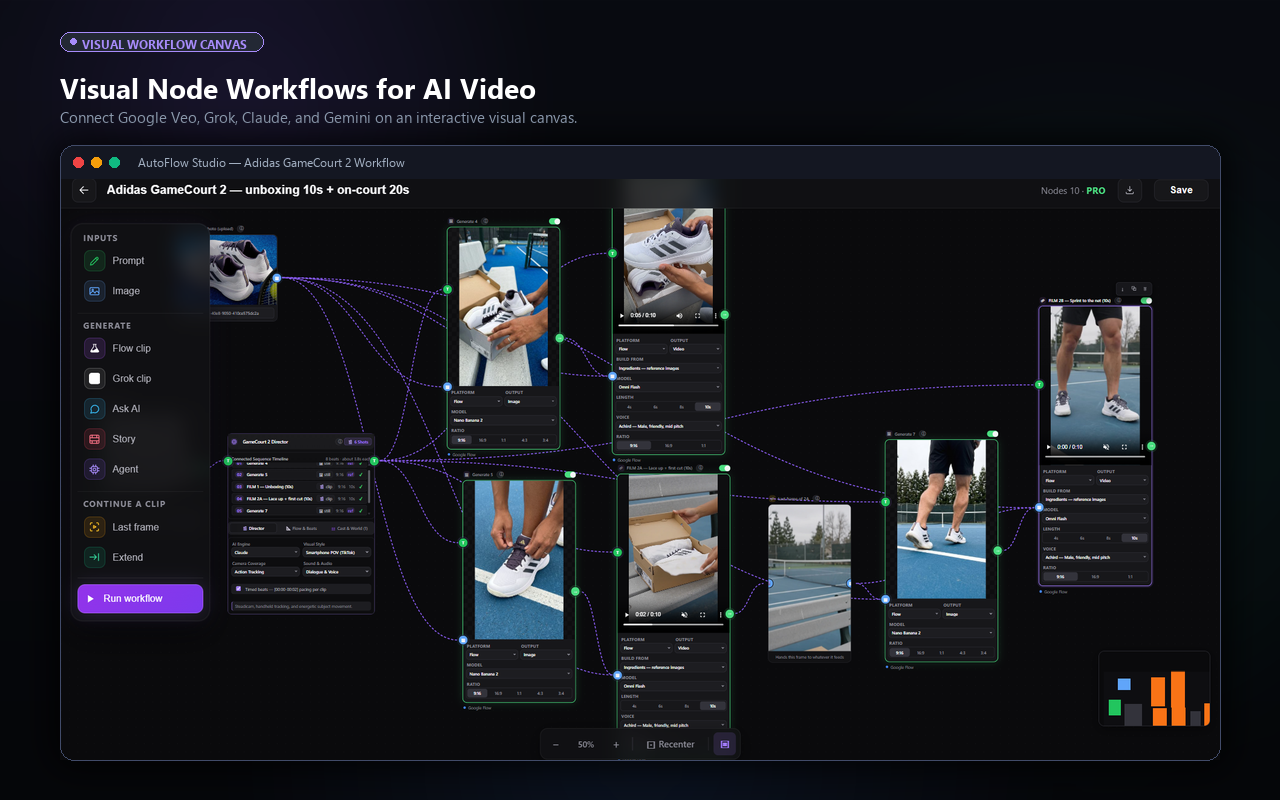
AutoFlow Studio
"ComfyUI for AI Video". A visual node canvas orchestrating Google Flow, Grok, and ChatGPT. Lock character continuity with Story Director, chain last frames, and build graphs with plain English.
Video Prompt Extractor
Upload any Sora, Runway, or Kling AI video or paste a YouTube/TikTok link. Our vision AI breaks down every shot, extracting exact image prompts, camera motion cues, voiceover scripts, and character design sheets.
AutoFlow Queue Manager
The high-speed batch automation engine for Google Flow. Paste 500+ prompts, auto-retry failed generations, configure multi-queues, and harvest finished videos in 4K with 1-click bulk download.
Everything You Need to
Generate at Scale
AutoFlow supercharges Google Flow with powerful automation tools designed for professional creators.
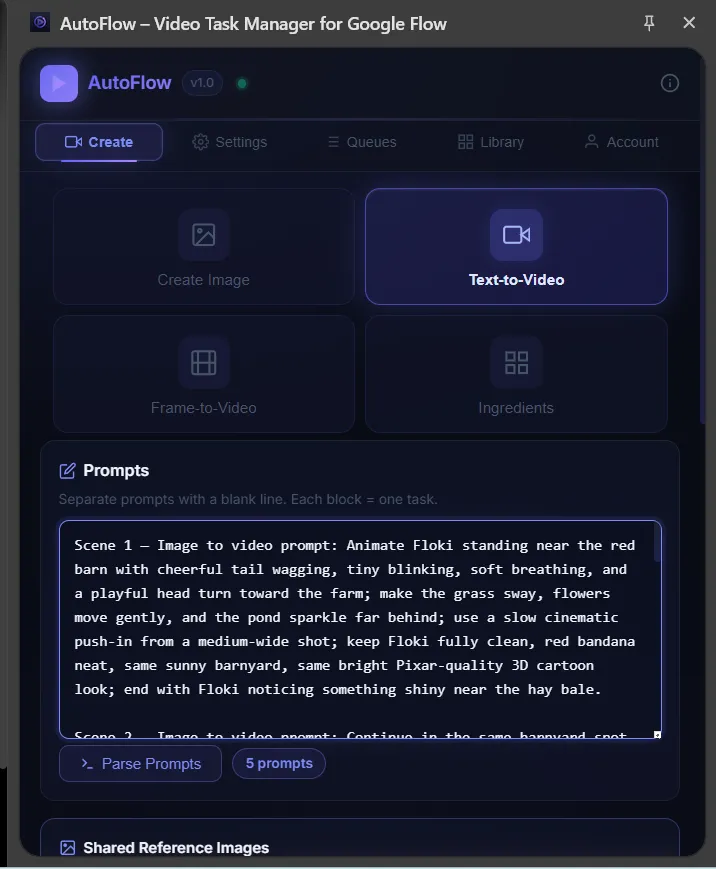
Google Flow Batch Generator
Stop copy-pasting prompts one by one. Paste your entire script — 5, 50, or 500 prompts — into our bulk editor to automate Veo video generation. AutoFlow instantly parses each block into a separate task.
- ✓ Auto-detects scene numbers
- ✓ Supports Text, Image & Ingredients mode
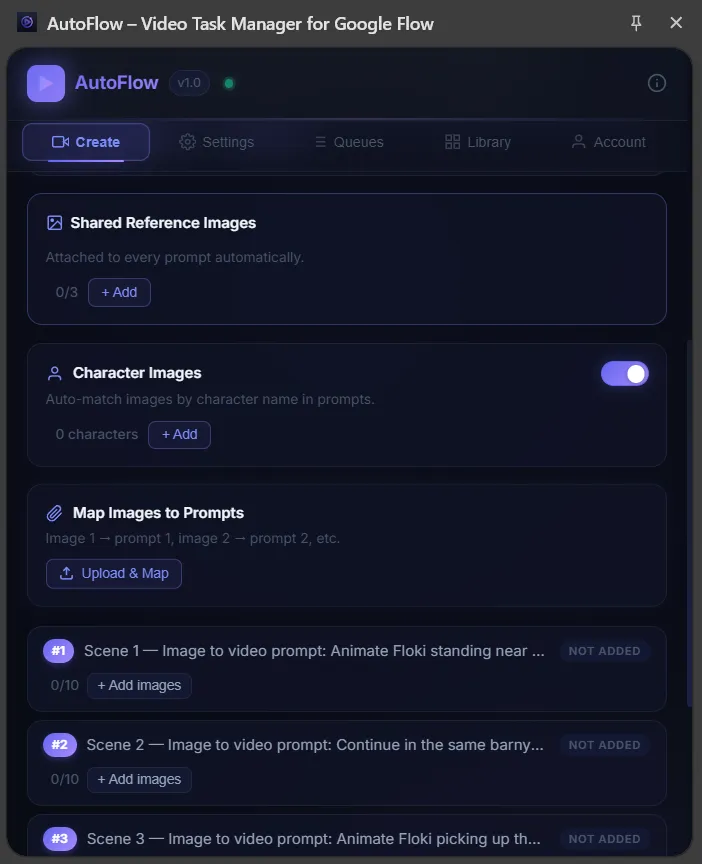
Reference Mapping
Attach reference images globally, or let AutoFlow automatically map character faces to specific scenes.
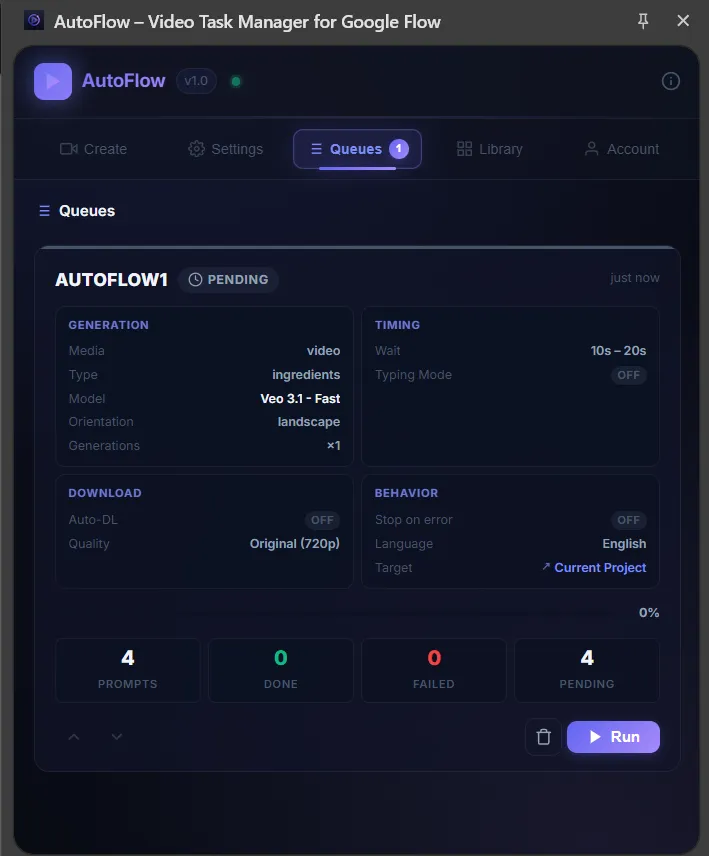
Smart Queues
Create multiple queues with different configs (Veo 3, 1080p, 4K). Reorder them and run sequentially.
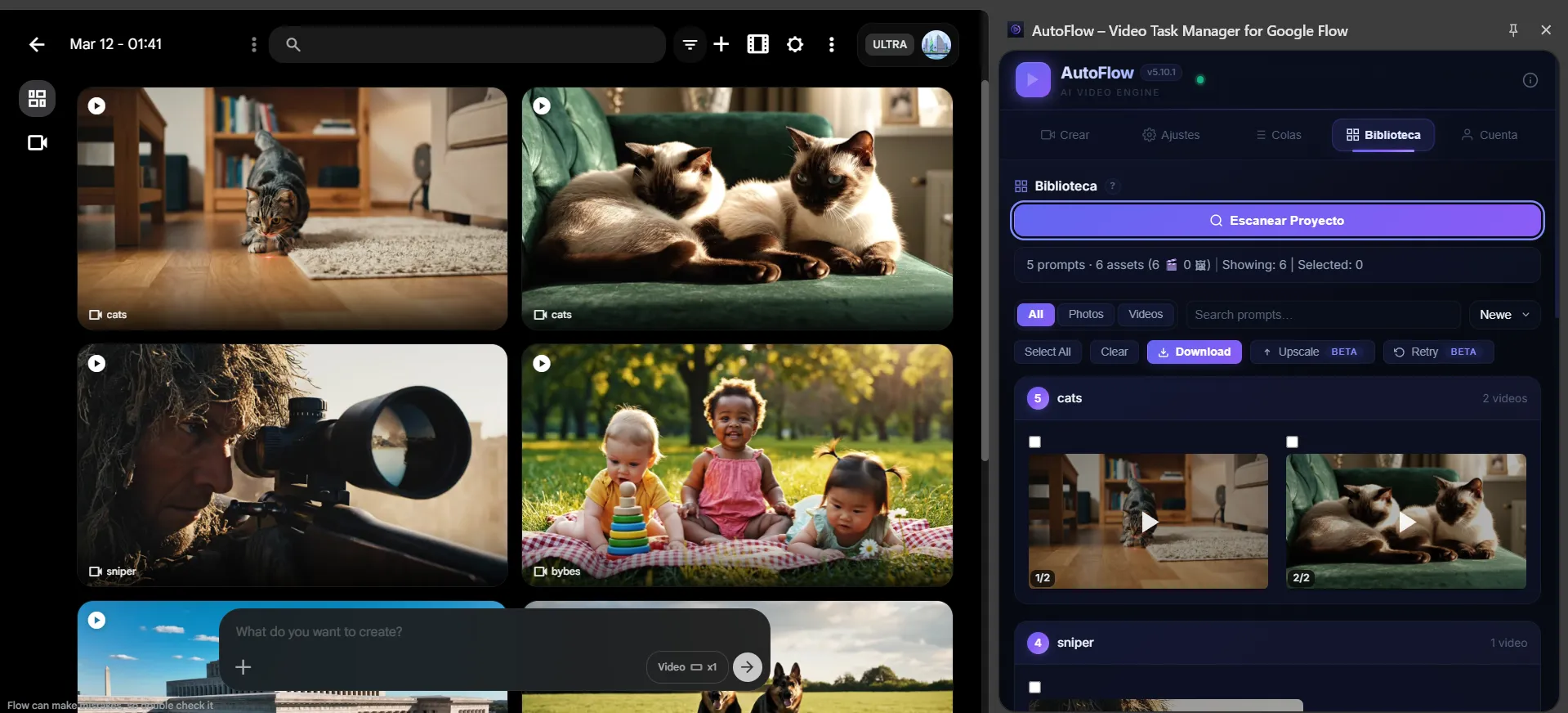
How to Download Veo Videos in 4K
Wondering how to download Veo videos in 4K easily? After generation, scan your project to see all videos grouped by prompt. Select your favorites and batch download everything in 4K with a single click.
- ✓ Grouped by prompt automatically
- ✓ Bulk upscaling and downloading
Three Steps to
Automated Generation
Get started in under a minute. No complex setup required.
Paste Your Prompts
Open AutoFlow's side panel on any Google Flow page. Choose your mode and paste all your prompts. Each paragraph becomes a separate task.
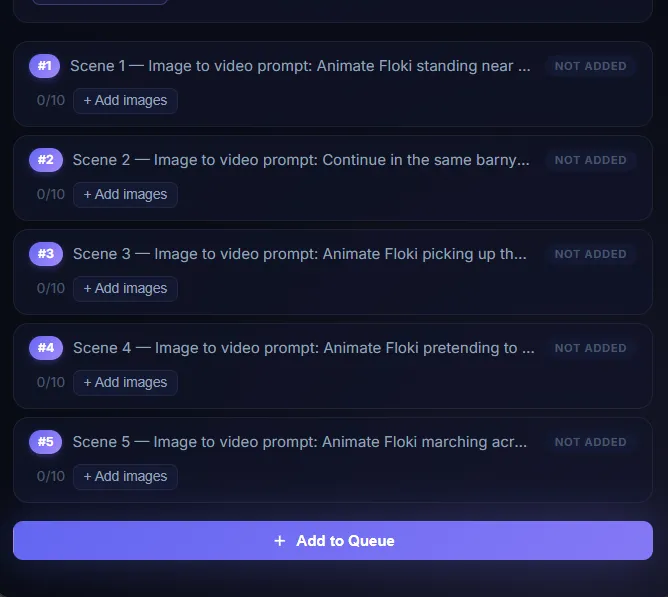
Configure & Run
Choose your video model, orientation, generation count, and download settings. Set your run target and hit Run.
Sit Back & Collect
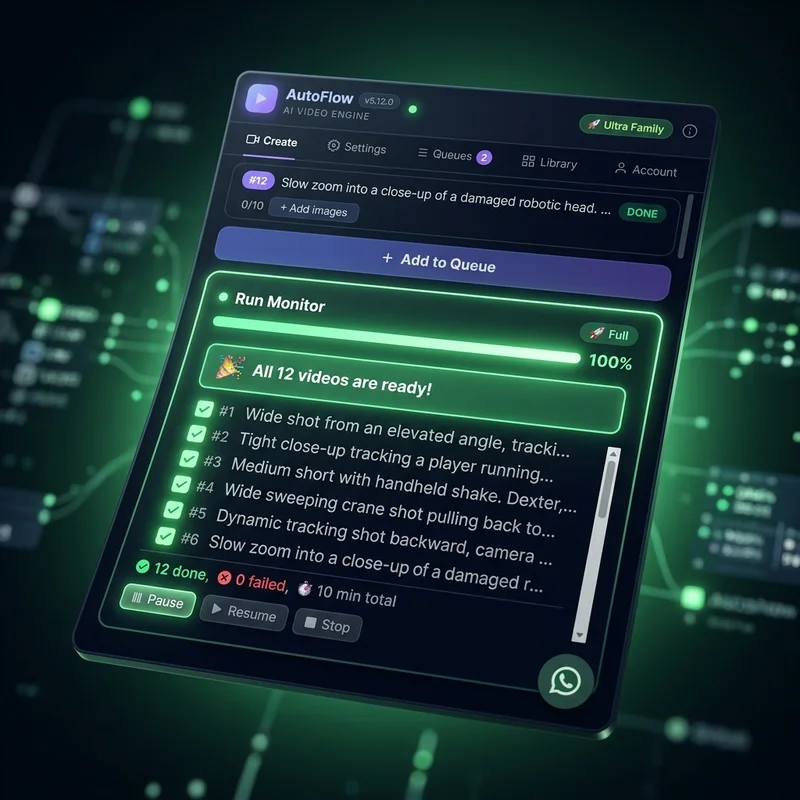
AutoFlow types, clicks, waits, and downloads automatically. When it's done, batch download everything in 4K.
Set It Up Once,
Generate Endlessly
While you sleep, AutoFlow processes hundreds of prompts, retries failures, and downloads everything in 4K. Wake up to a folder full of ready-to-publish AI videos.
Frequently Asked Questions
Everything you need to know about AutoFlow Studio, Extractor, and the Queue Manager.
How does AutoFlow Studio differ from the Queue Manager?
+AutoFlow Studio is a visual node-based canvas (like ComfyUI) designed for multi-shot cinematic storytelling, character consistency, and chaining shots. AutoFlow Queue Manager is our high-speed batch automation extension for queuing 500+ prompts in Google Flow and auto-downloading videos in 4K.