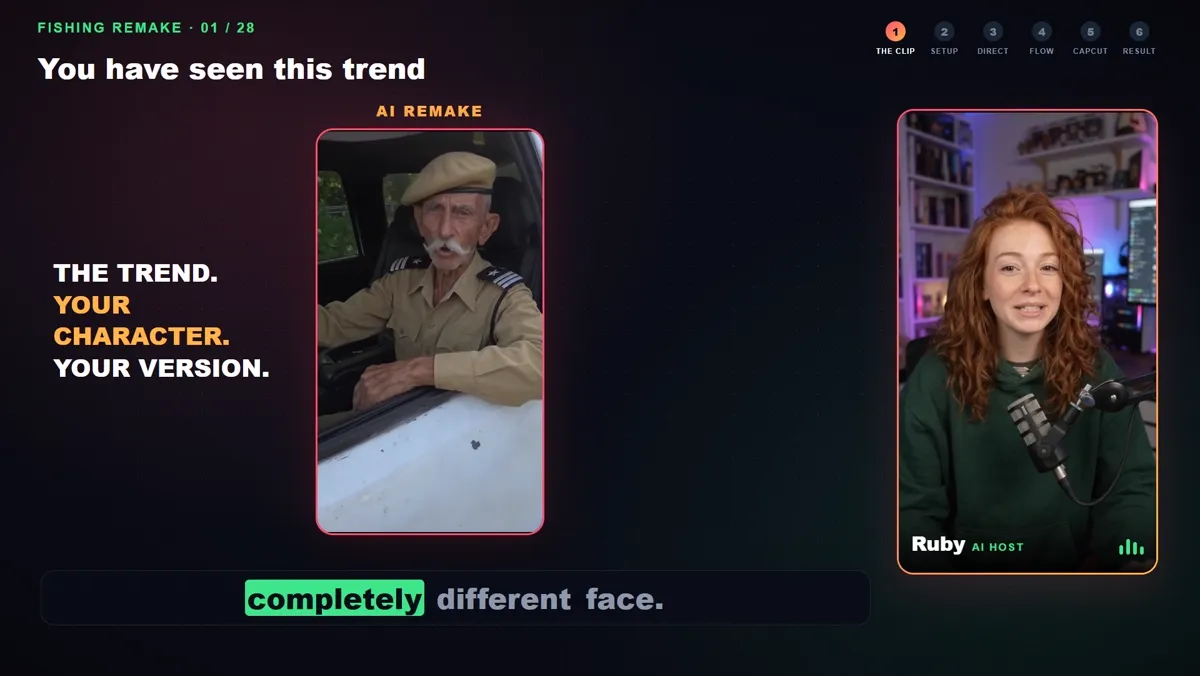
You have seen the trend: a viral clip, the same moment and the same conversation, but a completely different person. This guide shows how to remake the viral "who told you to fish here?" clip with your own AI character, step by step, with AutoFlow Motion, Gemini, Google Flow and CapCut.
What a viral character remake is
An AI character swap keeps the original video's movement and audio and replaces the person. It is called motion transfer or motion control: the original clip is the reference for every gesture, and the AI renders your character doing the same thing. The joke stays, the face changes, and that contrast is what makes these remakes spread.
Step 1: the clip, your character and Transfer motion
Open AutoFlow Motion next to Google Flow and choose Transfer motion. Add the original clip as the reference and a picture of your character. The output is portrait (9:16), ready for TikTok, Reels and Shorts.
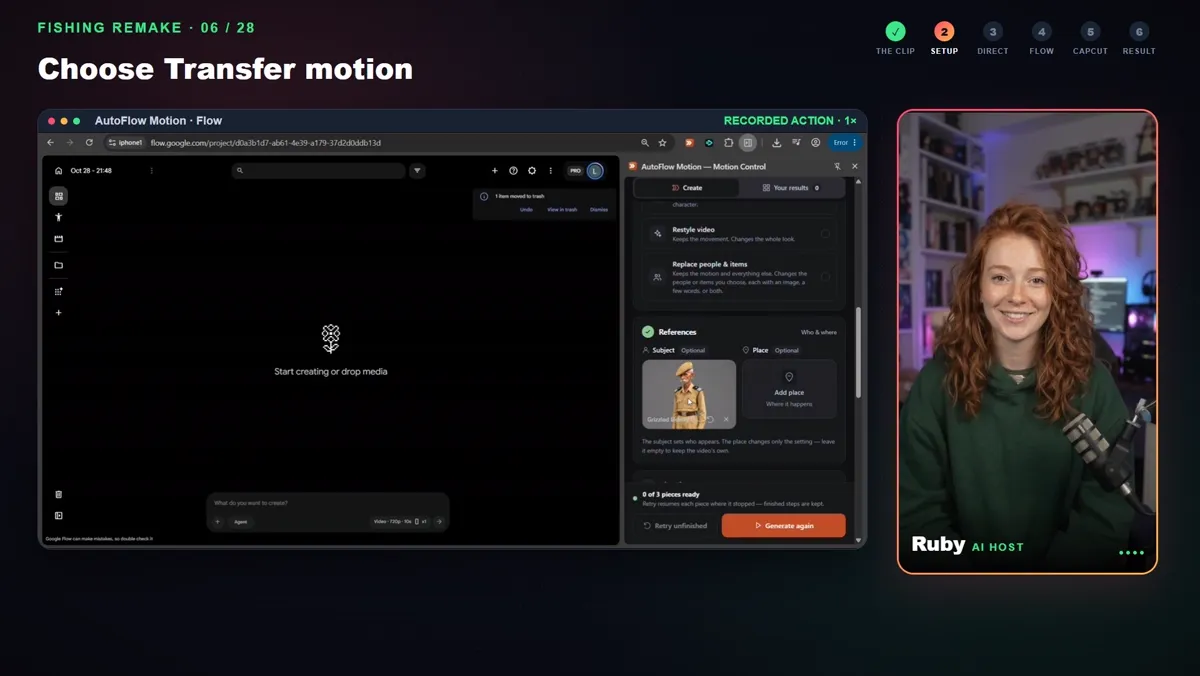
Choose Transfer motion, add the clip and your character.
Step 2: consistency and lip-sync
Leave consistency on so every piece continues from the ending frame of the one before, and leave lip-sync on so the mouth follows the original conversation. Remove the source audio from the generation; you will put the original sound back at the end.
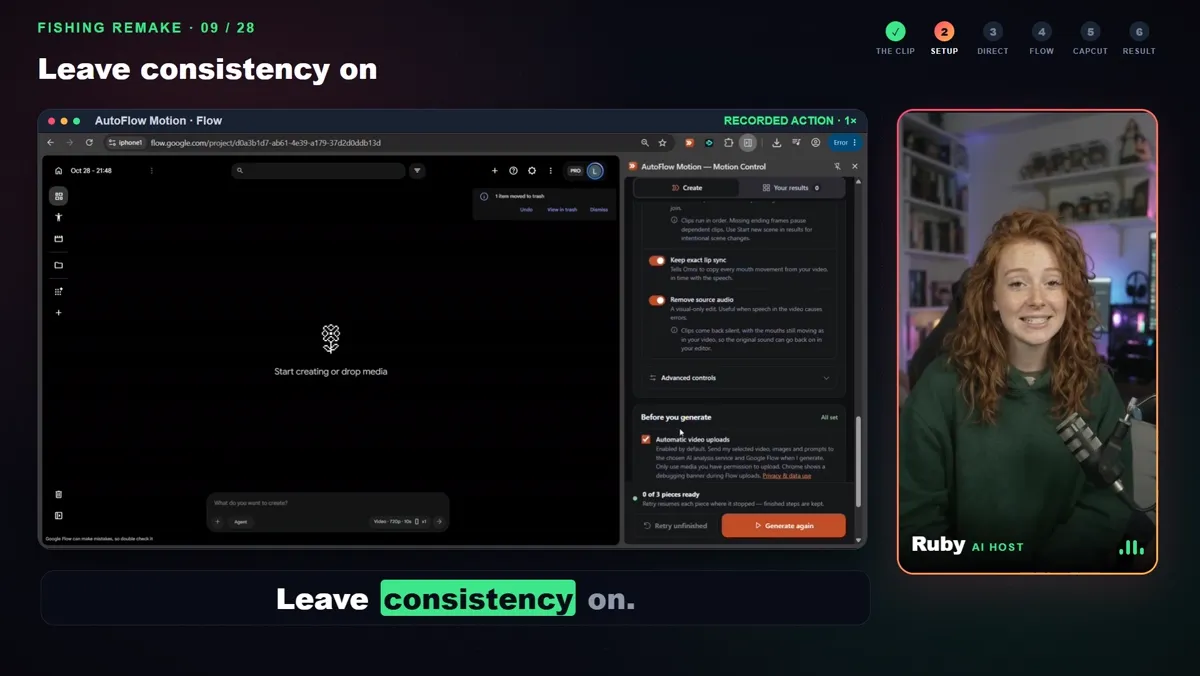
Leave consistency on.
Step 3: Gemini writes the movement
The 23-second clip is split into three pieces of about 8 seconds, the length AI video models handle best. Gemini watches each piece and writes the movement instructions for it, so you are not describing gestures by hand.
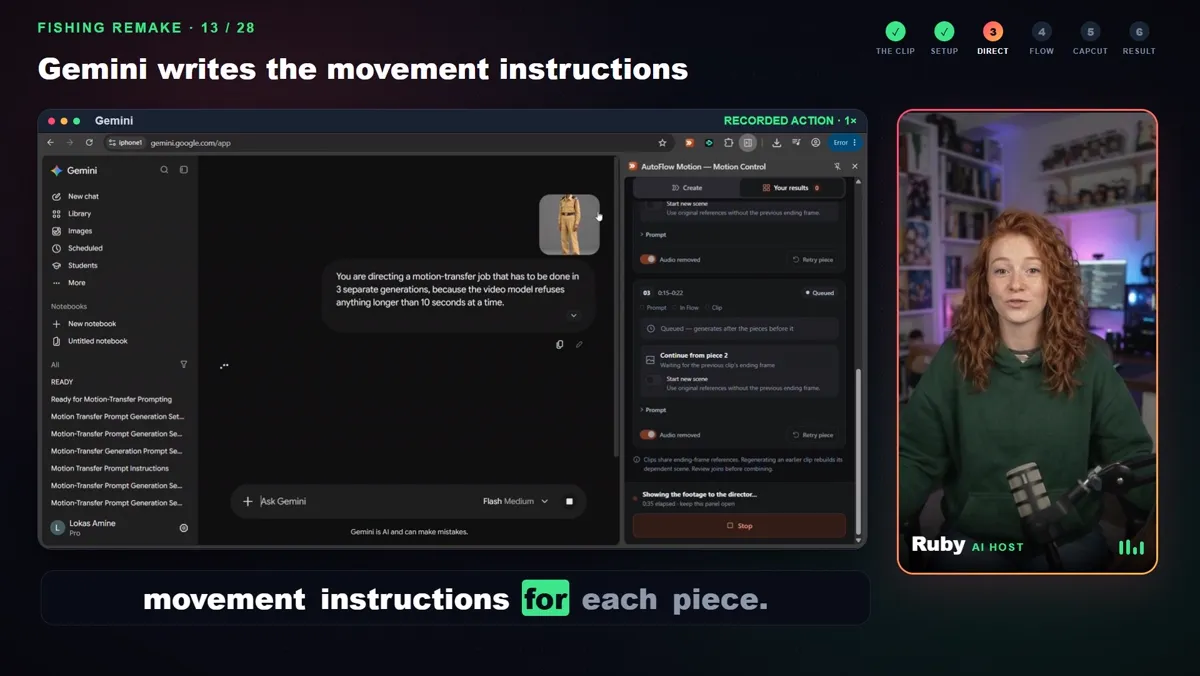
Gemini writes movement instructions for each piece.
Step 4: the pieces generate in Google Flow
AutoFlow Motion hands each piece to Google Flow with your character and starts it. The second and third pieces use the previous piece's ending frame, which keeps the joins smooth.
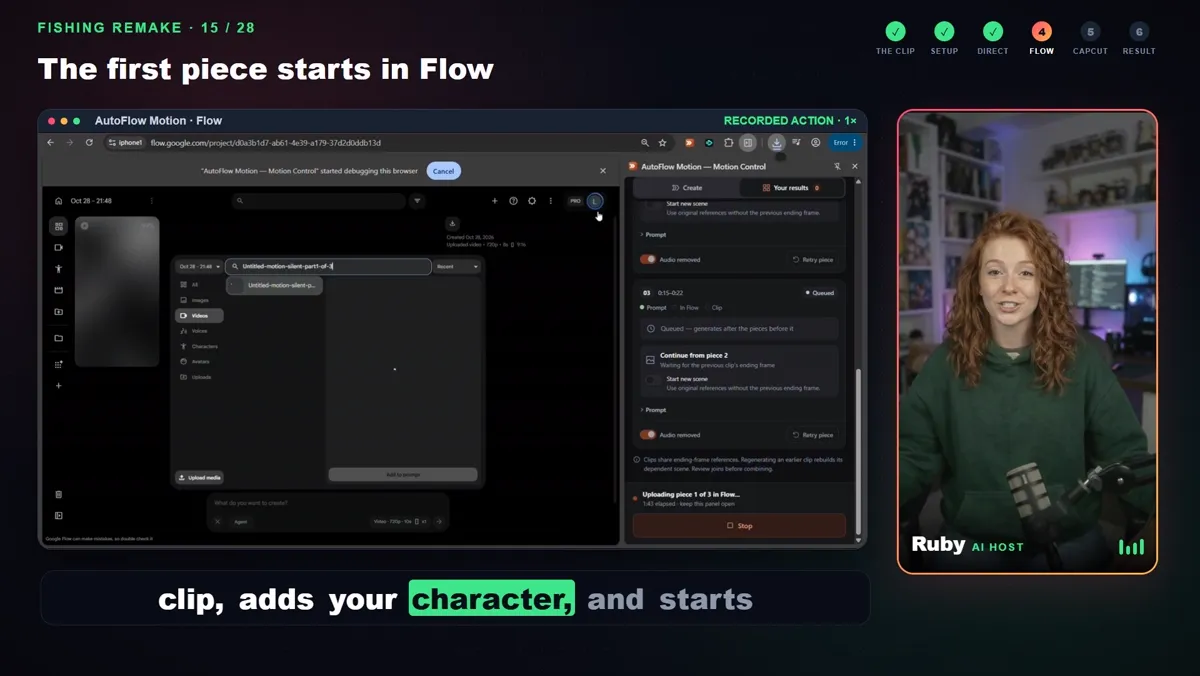
The first piece starts in Flow.
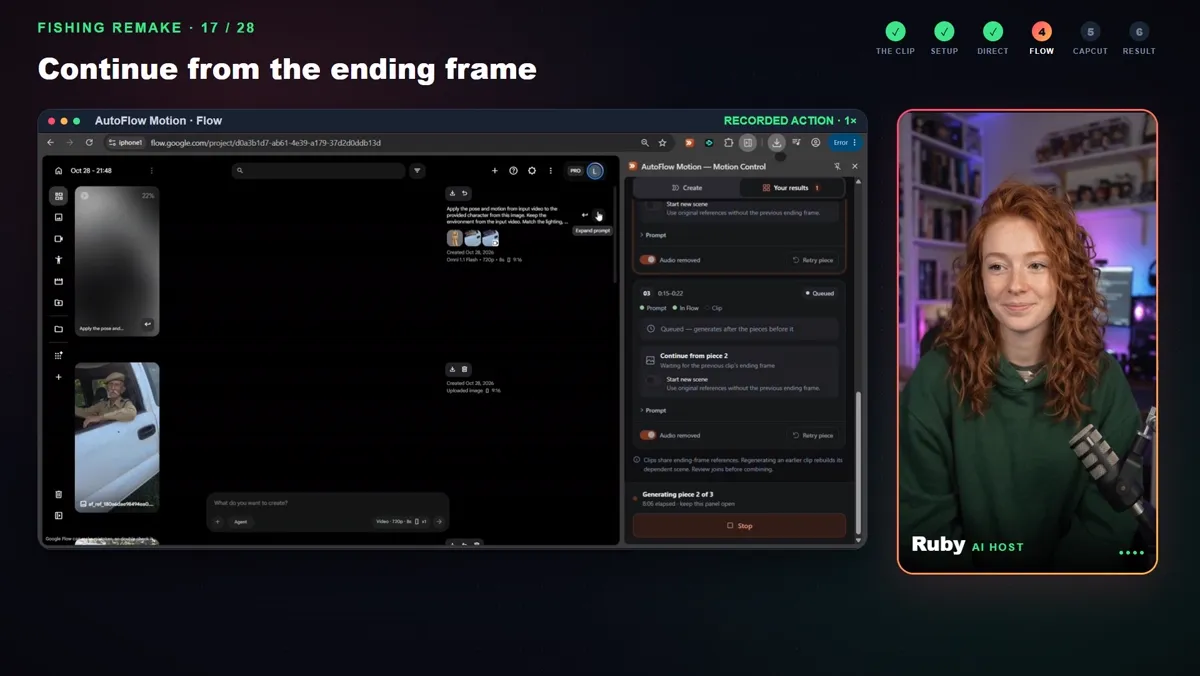
Each piece continues from the last frame.
Step 5: download all three clips
Review each piece, then download all three in one click.
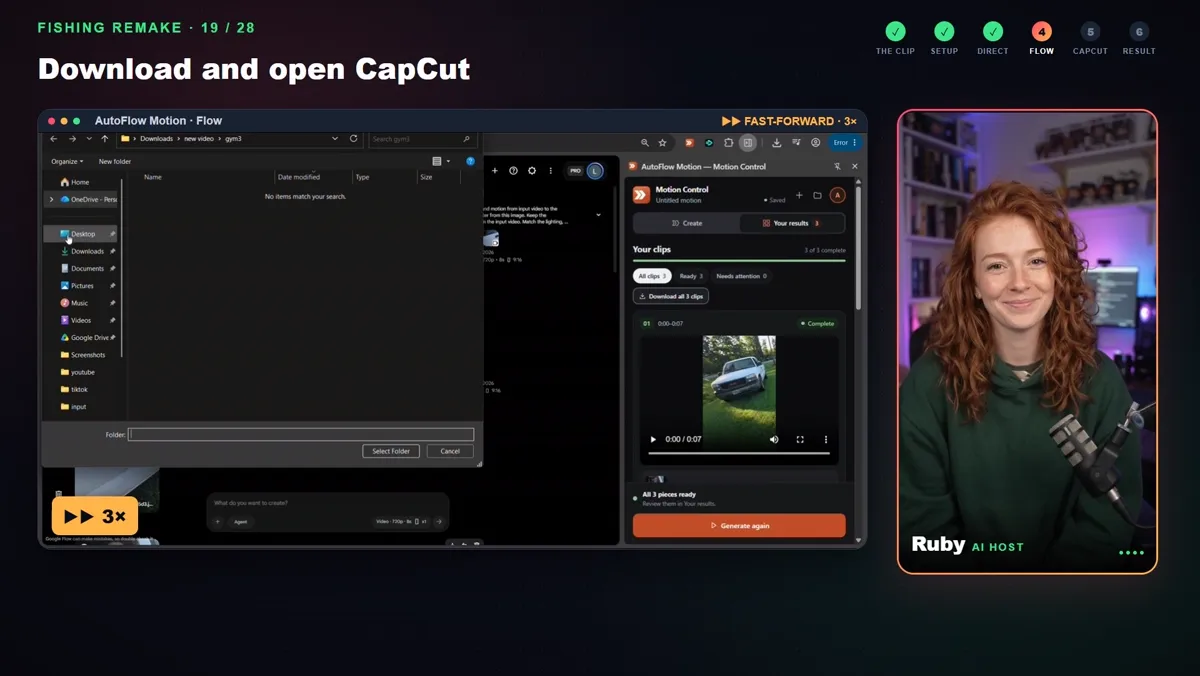
Download all three clips and open CapCut.
Step 6: join them in CapCut with the original audio
Drop the three clips next to each other on the CapCut timeline, trim a frozen ending if a piece has one, and lay the original conversation underneath as one audio track aligned from the start. Then check the sound against his mouth; if it feels off, nudge the audio a few frames.
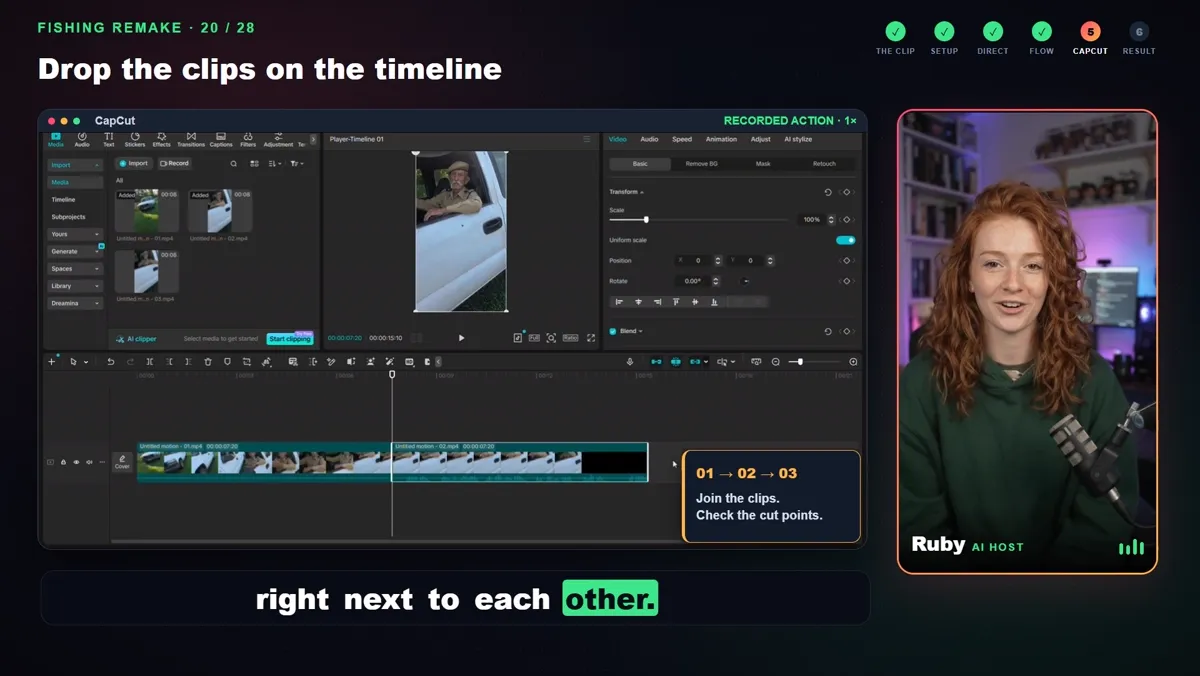
Clips side by side; check both cut points.
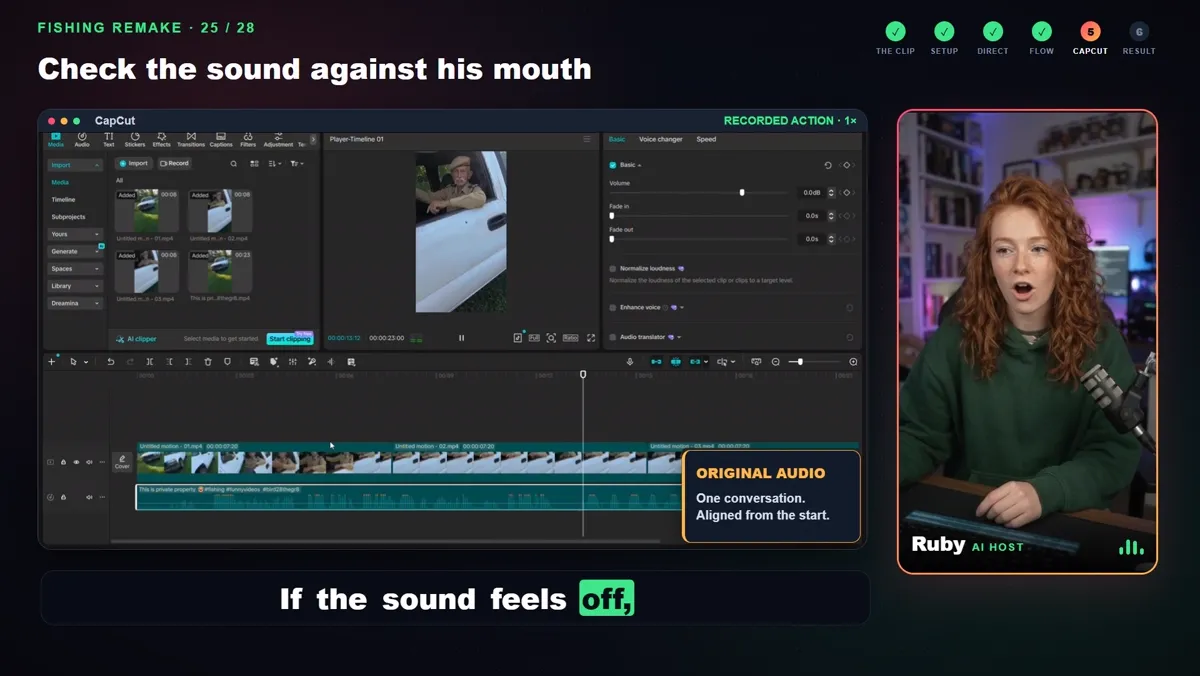
Check the sound against the mouth.
❓ Frequently Asked
How do you swap the character in a viral video with AI?
Use motion transfer: give the AI the original clip as the movement reference and a picture of your character. AutoFlow Motion splits the clip into short pieces, has Gemini write the movement for each, and runs them in Google Flow with your character, then you join the pieces and put the original sound back.
Why is the clip split into pieces?
AI video models make their best clips at around 8 seconds. A 23-second clip becomes three pieces, and each piece after the first starts from the ending frame of the one before so the joins stay continuous.
Does the AI copy the lip movements?
With lip-sync on, the model follows the mouth movement of the reference while the original conversation plays over it. It helps a lot, but it is not guaranteed; always check both joins and the mouth timing before you post.
Which editor joins the clips?
Any editor works. This guide uses CapCut: put the three clips next to each other on the timeline, trim a frozen ending if there is one, and lay the original audio underneath as one track.
Can I use any viral clip?
Only use footage you have permission to reuse, and credit the original creator. The remake should be clearly AI-generated; most platforms ask you to label realistic AI content.
Original fishing clip: bird28thegr8. The remake is AI-generated; only use footage you have permission to reuse. Ruby is an AI presenter made in Google Flow.