Google Flow is a powerhouse for AI video generation, giving creators direct access toGoogle Veo. While the output resolution can reach crisp 4K, generating and downloading multiple clips manually is a repetitive nightmare. You have to wait for one render to finish, click download, choose the resolution, type the next prompt, and repeat.
In this guide, we will show you exactly how to set up Google Flow automationto batch process dozens of prompts and download the final Veo video renders in gorgeous 4K, all on autopilot.
Why Downloading 4K Veo Videos is Hard Manually
By default, Google Flow creates video renders in lower draft qualities first (like 720p) to speed up your generation preview. If you want the final 4K video, you have to manually request the upscale, wait for the processing to finish, and click download for every single video.
For creator channels running dozens of clips daily, this manual process eats up hours of creative time. That is why setting up an automated Google Flow batch generator is essential.
Google Flow Automation: Automate Your Workflow
AutoFlow is a lightweight Chrome extension that integrates directly into Google Flow. It provides a custom sidebar panel right next to your active video generation workspace. With AutoFlow, you can queue up to 500 prompts, configure video parameters once, and let the autopilot handle typing, running, and downloading.
Step-by-Step: Setting Up a Batch Generation
1. Prepare Your Prompts
Open AutoFlow side panel alongside Google Flow. In the Create tab, paste all your video prompts. Separate each prompt with a blank line. If you are making a cinematic sequence, you can paste the entire timeline here.
2. Customize Your Render Settings
In the Queues tab, you can set the global generation parameters:
- Model: Choose Veo 3.1 or Veo 3.1 Fast.
- Aspect Ratio: Select 16:9 for YouTube/film, or 9:16 for TikTok/Shorts.
- Quality: Select 4K to request high-resolution upscaling automatically.
How to Download Veo Videos in 4K in Bulk
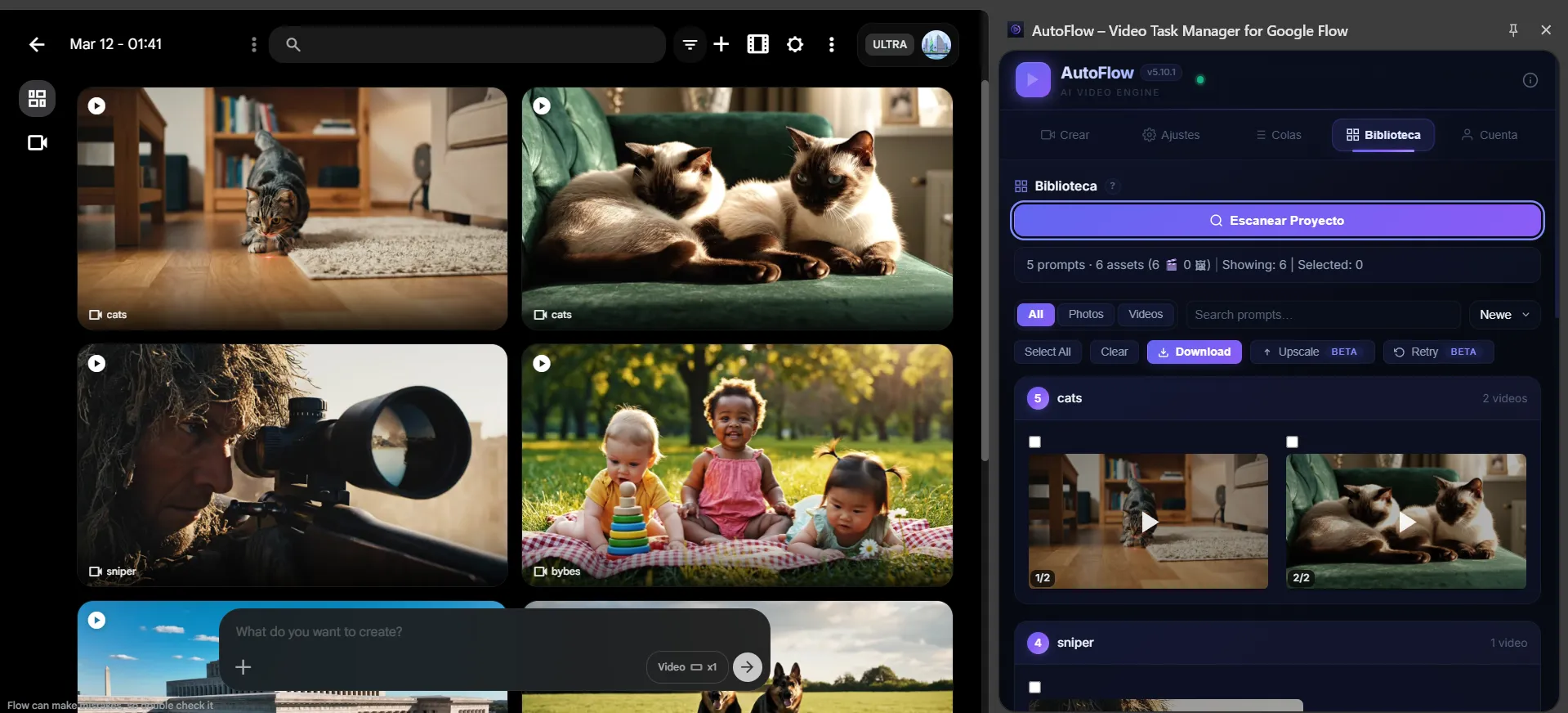
Once your queue finishes running on autopilot, AutoFlow saves all generated assets to a local cache. Here is how to extract and download your 4K renders with a single click:
- Go to the Library tab inside the AutoFlow panel.
- Click Scan. AutoFlow will scour the Google Flow DOM state and pull all completed 4K renders.
- Your videos will be grouped neatly by the original prompt text.
- Select individual clips or check the Select All box.
- Click Download Selected. AutoFlow will trigger a bulk download sequence, saving every 4K video file directly to your downloads folder.
Pro Tips for Flawless AutoFlow Runs
- Enable Auto-Download: In the AutoFlow Settings tab, toggle on "Auto-download completed generations". This ensures that even if you walk away from your computer, your 4K Veo files are downloaded the moment they finish upscaling.
- Smart Queue Auto-Retry: Turn on "Auto-retry failed runs" in your settings. If Google Flow runs into a temporary server error, AutoFlow will retry the generation up to 2 times automatically before moving to the next prompt.
- Combine with Extractor: If you find an AI video you love online, use our prompt extraction guide to reverse-engineer its prompt, paste it in AutoFlow, and generate your own 4K version.
Ready to Automate Your AI Video Production?
Stop wasting time clicking buttons and waiting for upscales. Automate Google Flow today with the free AutoFlow Chrome extension.
❓ Frequently Asked Questions
How do I download Veo videos in 4K using AutoFlow?
Ensure that you select the 4K quality option in your queue settings. After generation is completed, open the Library tab, scan the workspace, and select the clips to batch download in 4K.
Is there a limit to how many videos I can download at once?
No. AutoFlow handles batch downloads seamlessly. However, if you are downloading hundreds of files, ensure your browser settings do not block multiple concurrent downloads.
Does Google Flow allow commercial use for 4K video renders?
Yes. Renders created through Google Flow (Veo) can generally be used for commercial purposes. Make sure to check the latest Google Labs Terms of Service to stay up to date.