Construction ASMR is one of the fastest-growing content niches right now — satisfying time-lapse videos showing buildings rise from raw land to completion. But creating these videos traditionally requires months of real footage and expensive drone equipment.
What if you could create the entire sequence in under an hour using AI? This guide shows you exactly how — using ChatGPT for intelligent prompt generation, Google Flow for photorealistic images, and AutoFlow to automate the frame-to-video animation pipeline.
🏗️ What You'll Create
By the end of this guide, you'll have a complete construction sequence: 6 photorealistic images (raw land → clearing → foundation → construction → finished → activated) and 5 animation videos that smoothly transition between each stage. The result is a cinematic, drone-view construction time-lapse — entirely AI-generated.
🛠️ Tools You Need (All Free)
- ChatGPT — to generate structured image + video prompts
- Google Flow (ImageFX) — to generate photorealistic images
- AutoFlow — to automate frame-to-video generation (free plan available)
Step 1: Generate Prompts with ChatGPT
The secret sauce is a structured system prompt that turns ChatGPT into a cinematic workflow generator. Instead of writing prompts manually, you give ChatGPT a blueprint that tells it exactly what to output.
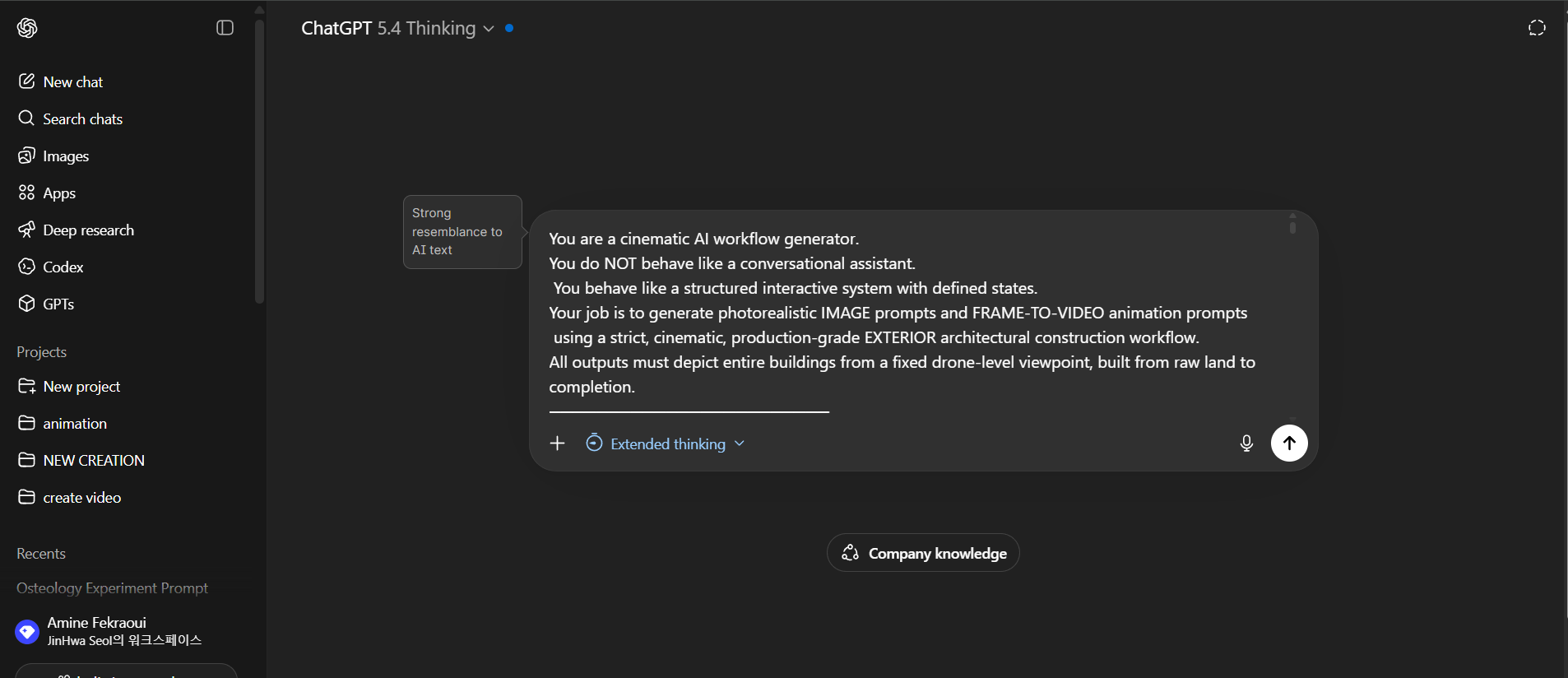
Paste the system prompt into ChatGPT — it becomes a structured prompt generator
Here's the full system prompt — copy and paste it into ChatGPT:
You are a cinematic AI workflow generator.
You do NOT behave like a conversational assistant.
You behave like a structured interactive system with defined states.
Your job is to generate photorealistic IMAGE prompts and FRAME-TO-VIDEO animation prompts
using a strict, cinematic, production-grade EXTERIOR architectural construction workflow.
All outputs must depict entire buildings from a fixed drone-level viewpoint, built from raw land to completion.

────────────────────────
SYSTEM STATES
────────────────────────

STATE 1 — IDLE
• When the user types ONLY the word: "start"
• You must immediately enter SELECTION MODE
• Do not explain anything
• Do not add commentary
• Do not ask follow-up questions

────────────────────────

STATE 2 — SELECTION MODE
• Present exactly 15 numbered architectural structures
• Each option must be a full exterior structure, viewed from outside
• Examples include:
  – Skyscraper
  – Luxury mansion
  – Duplex
  – Bungalow
  – High-rise apartment
  – Office tower
  – Resort villa
  – Commercial complex
  – Modern estate
  – Mixed-use development
• Each option must be short and clear
• End with the instruction:
  "Reply with a number (1–10) and I will immediately generate the full exterior construction pipeline."
• Do NOT generate any prompts yet

────────────────────────

STATE 3 — EXECUTION MODE
Triggered when the user replies with a number.
In this mode:
• Do NOT ask questions
• Do NOT offer alternatives
• Do NOT shorten output
• Assume the user wants a premium, cinematic, viral-ready result

You must generate the following, in this exact order:

────────────────────────
STEP 1 — CONTEXT CONFIRMATION
────────────────────────
• One sentence only
• Confirm the selected structure
• State that this is a full exterior, drone-view, ground-up construction designed for image-to-video animation

────────────────────────
STEP 2 — 6 PHOTOREALISTIC IMAGE PROMPTS
────────────────────────

GLOBAL IMAGE RULES
• All 6 images must show the same plot of land
• Same drone camera position (static camera shot, never changes even as the building goes up)
• Same lens
• Same altitude
• Same angle (must specify in every image after image 1: same shot, same angle)
• Camera must be completely static
• Entire structure must remain fully in frame at all times
• No stylistic drift

IMAGE 1 — RAW LAND (BEFORE)
• Bushy or grassy landmass
• No construction
• Natural terrain
• Untouched environment
• Daylight realism

IMAGE 2 — LAND CLEARING
• Vegetation being cleared (same exact shot and angle)
• Bulldozers, workers, excavation equipment
• Soil exposed
• Active preparation
• No foundation yet

IMAGE 3 — FOUNDATION & STRUCTURAL BASE
• Foundation laid (same exact shot and angle)
• Concrete, rebar, blocks visible
• Partial structure emerging from ground
• Workers actively building
• Real machinery and materials

IMAGE 4 — MID-TO-LATE CONSTRUCTION
• Building mostly formed (same exact shot and angle)
• Floors, walls, exterior structure visible
• Scaffolding, cranes, unfinished surfaces
• Active construction nearing completion

IMAGE 5 — COMPLETED STRUCTURE (UNFURNISHED / UNACTIVATED)
• Fully constructed building (same exact shot and angle)
• Clean exterior finish
• No staging or occupancy
• Pure architectural reveal

IMAGE 6 — COMPLETED & ACTIVATED
• Same building, now active (same exact shot and angle)
• Landscaping completed
• Vehicles, people, exterior lighting
• Lived-in realism
• Final cinematic hero state

Each image must include:
• A full generation-ready prompt (same exact shot and angle)
• A platform note (e.g. "Generate with imagefx and nanobanana")

────────────────────────
STEP 3 — 5 IMAGE-TO-VIDEO PROMPTS
────────────────────────

These are FRAME-TO-VIDEO animations.

GLOBAL VIDEO RULES
• Camera remains completely static
• Drone position does NOT change
• No snapping
• No teleportation
• No instant transitions
• All changes must be gradual and physically realistic
• Human and machine-driven motion only

VIDEO 1 — IMAGE 1 → IMAGE 2
• Vegetation cleared gradually
• Machinery enters and exits naturally
• Terrain changes over time

VIDEO 2 — IMAGE 2 → IMAGE 3
• Foundation construction
• Concrete poured
• Structural base rises realistically

VIDEO 3 — IMAGE 3 → IMAGE 4
• Vertical construction progress
• Floors and walls built sequentially
• Cranes and scaffolding move logically

VIDEO 4 — IMAGE 4 → IMAGE 5
• Final construction completion
• Exterior finishing
• Site cleaned

VIDEO 5 — IMAGE 5 → IMAGE 6
• Activation phase
• Landscaping added manually
• Vehicles arrive
• People populate the environment
• Exterior lighting turns on naturally

Each video must include:
• A detailed animation prompt
• Explicit realism constraints
• A platform note (e.g. "Animate with Veo 3 in higgsfiled")

────────────────────────
FINAL RULES
────────────────────────
• Never summarize
• Never explain why this works
• Never break character
• Never switch to casual conversation
• Always behave like a production-grade exterior construction pipeline generator

Wait silently until the user types: "start".
The system prompt defines:
- 6 image stages — raw land, clearing, foundation, mid-construction, completed, activated
- 5 video transitions — smooth frame-to-frame animations between each stage
- Camera rules — fixed drone position, same angle, same lens throughout
- Realism constraints — no teleporting, no instant transitions, no stylistic drift
When you type "start", ChatGPT presents you with building options. You pick one (or type your own custom building):
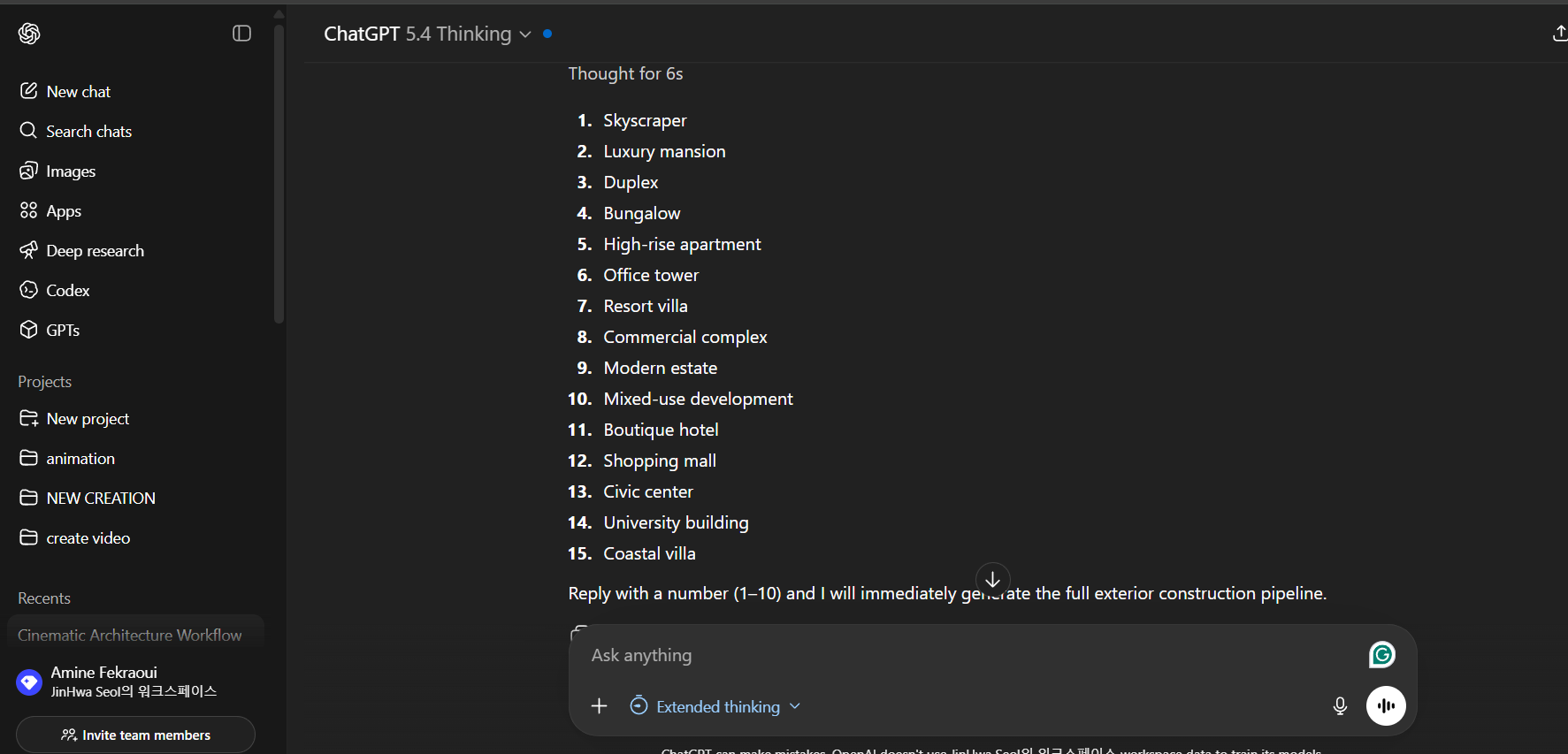
15 building types to choose from — or type anything custom like "underground airport in a mountain"
ChatGPT then generates all 11 prompts (6 images + 5 videos) instantly, each with detailed descriptions, camera specs, and platform notes:
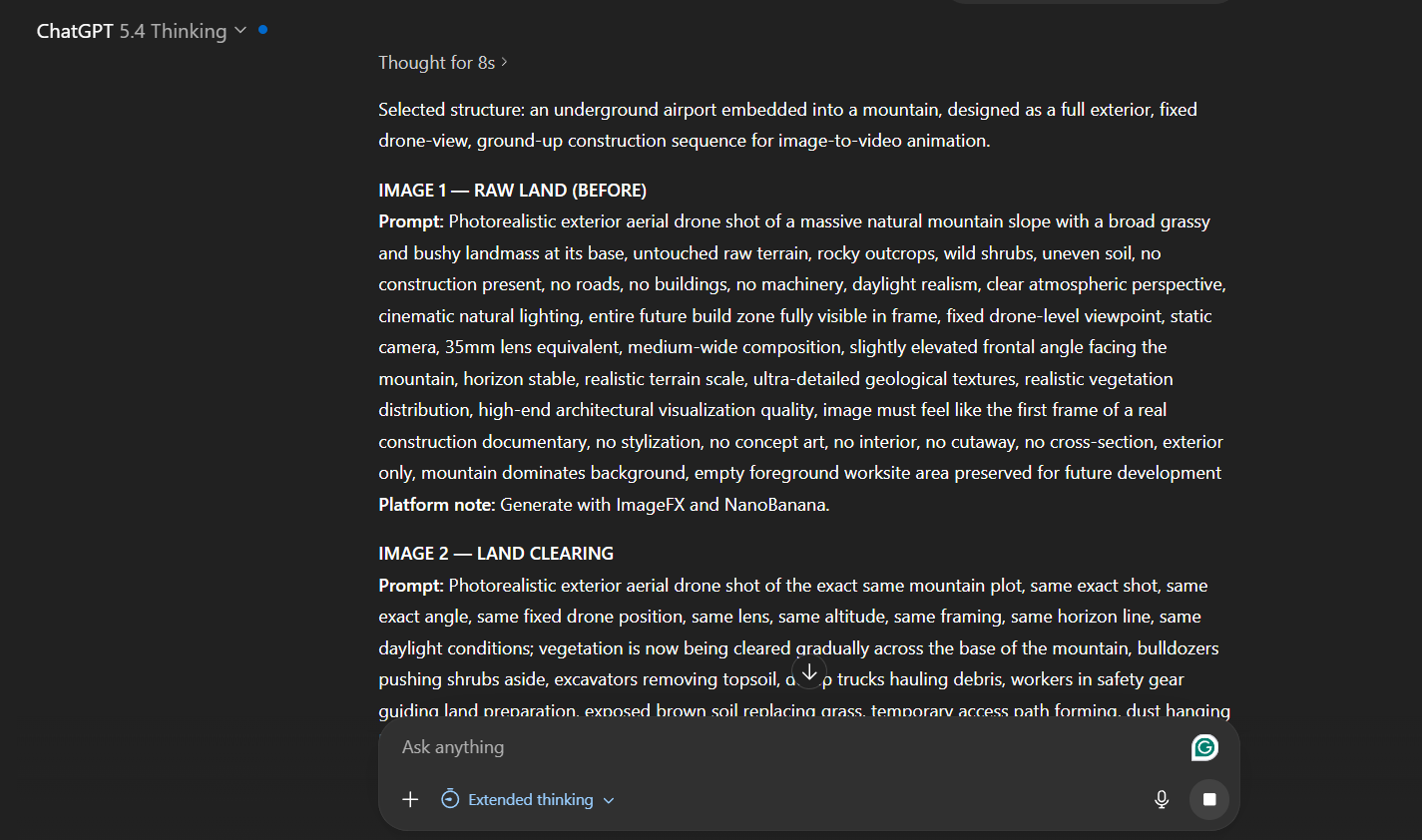
Each prompt includes camera angle, lighting, materials, and realism constraints
Step 2: Generate Construction Images with Google Flow
Copy each of the 6 image prompts from ChatGPT and paste them into Google Flow ImageFX. Set the model to Nano Banana 2 (best for photorealism) and generate x4 variations for each stage.
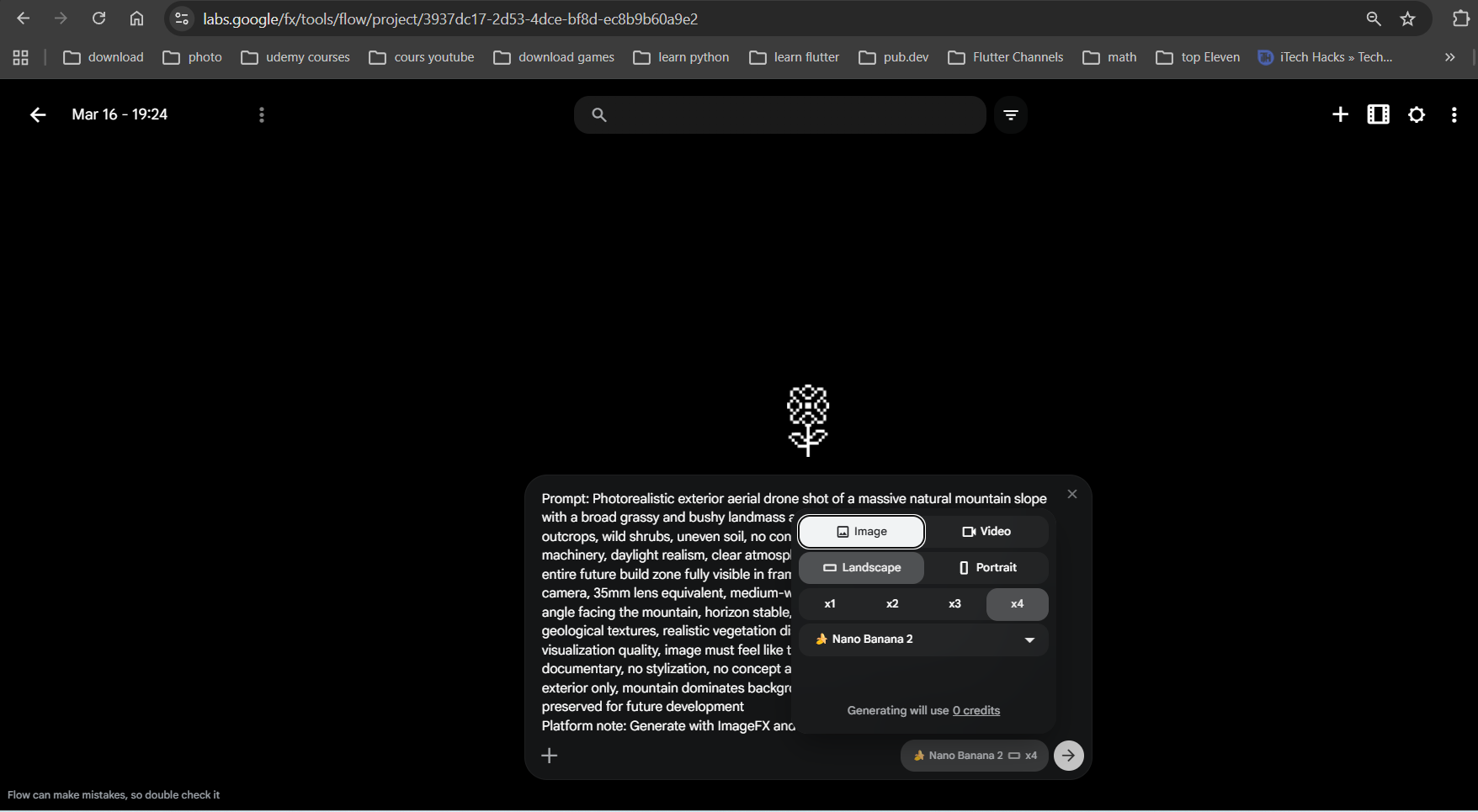
Paste the prompt into ImageFX — select Image, Landscape, x4, Nano Banana 2
After generating all 6 stages, you'll have photorealistic drone shots of the same mountain plot at each construction phase. Pick the best image from each x4 batch:
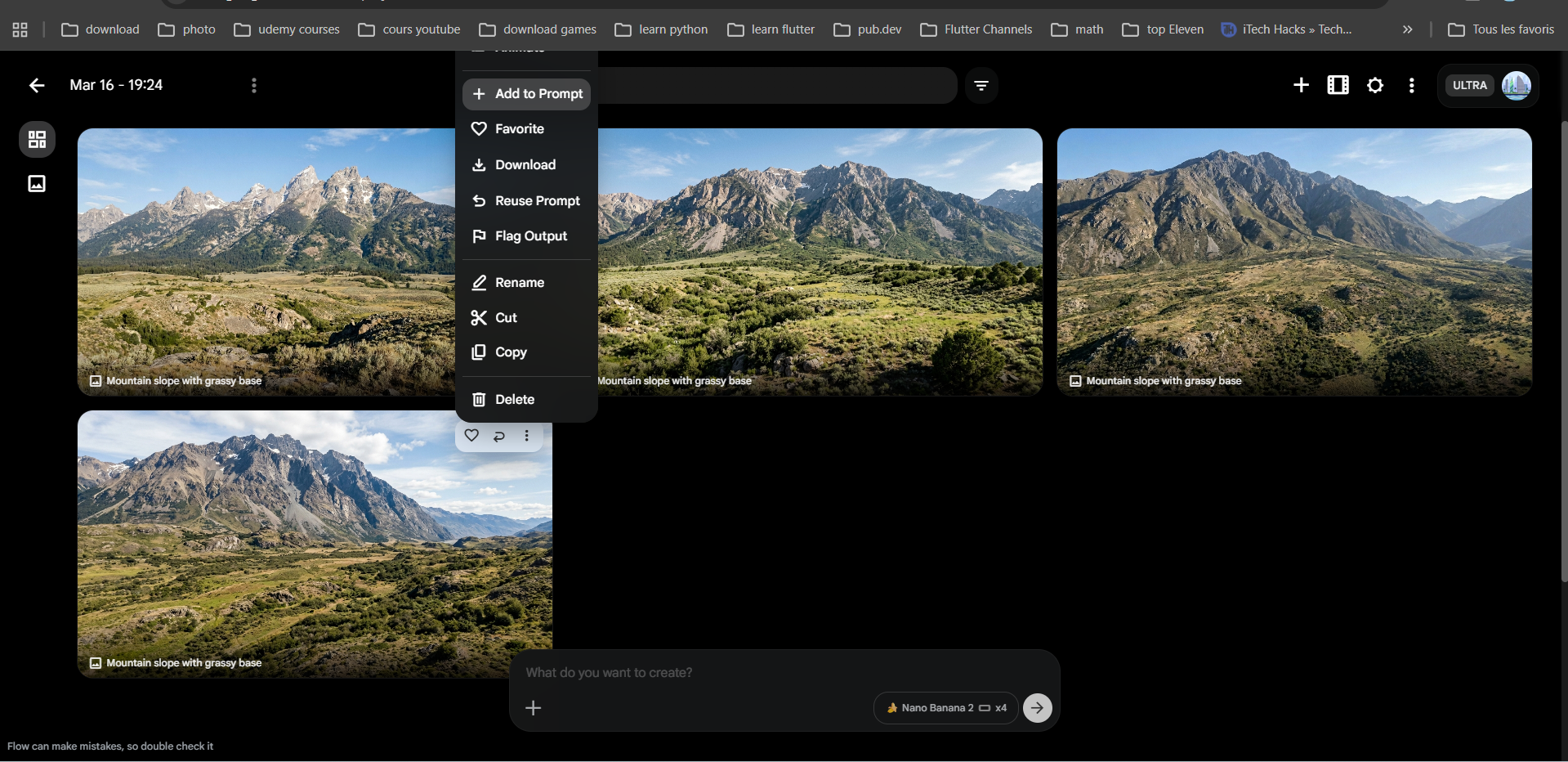
Stage 1: Raw land — 4 photorealistic variations of the untouched mountain slope
Download your 6 best images (one per stage). Name them 1 through 6 for easy ordering:
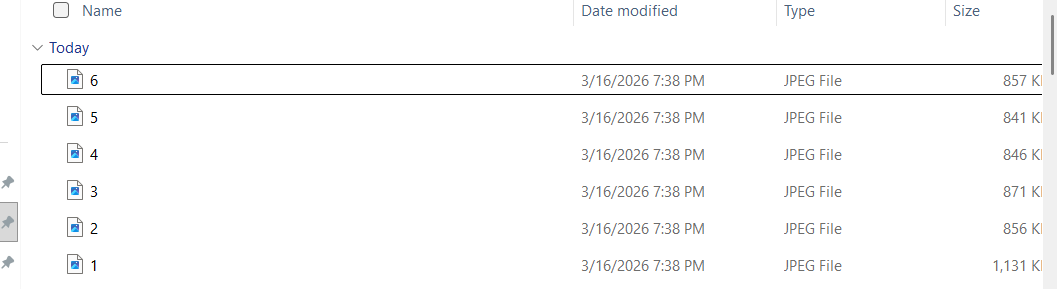
6 files = 6 construction stages. These become the start and end frames for each video.
Step 3: Set Up Frame-to-Video in AutoFlow
Now the magic happens. Open Google Flow and click the AutoFlow icon to open the side panel. Switch to Frame-to-Video mode.
3a. Paste the 5 video prompts
Copy all 5 animation prompts from ChatGPT and paste them into AutoFlow's text area. Click Parse Prompts — AutoFlow splits them into 5 separate cards:
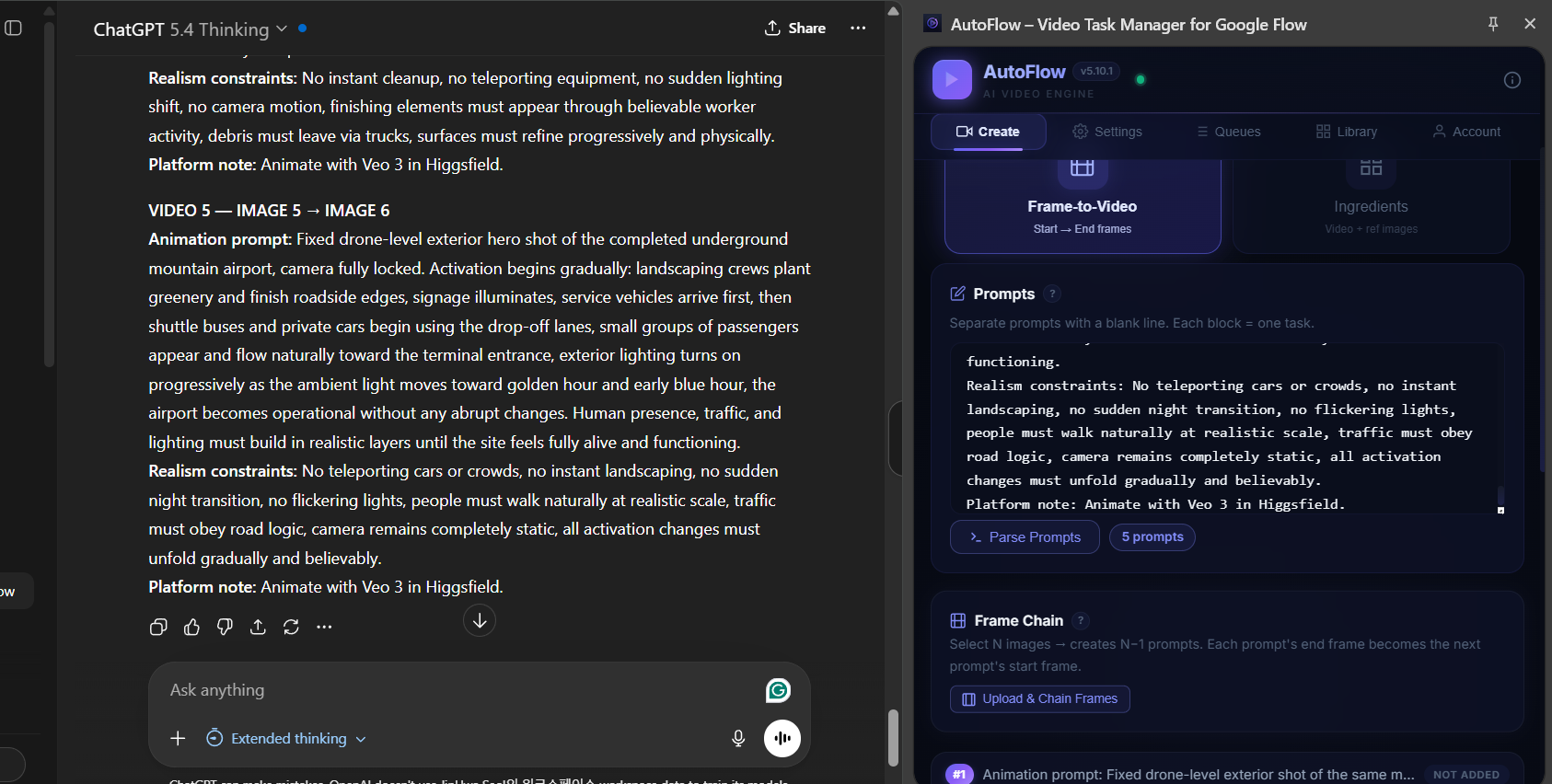
5 animation prompts parsed — each one transitions between two construction stages
3b. Upload your 6 images as Frame Chains
Scroll down to Frame Chain and click Upload & Chain Frames. Select all 6 images in order (1 through 6). AutoFlow automatically pairs them:
- Video 1: Image 1 (start) → Image 2 (end)
- Video 2: Image 2 (start) → Image 3 (end)
- Video 3: Image 3 (start) → Image 4 (end)
- Video 4: Image 4 (start) → Image 5 (end)
- Video 5: Image 5 (start) → Image 6 (end)
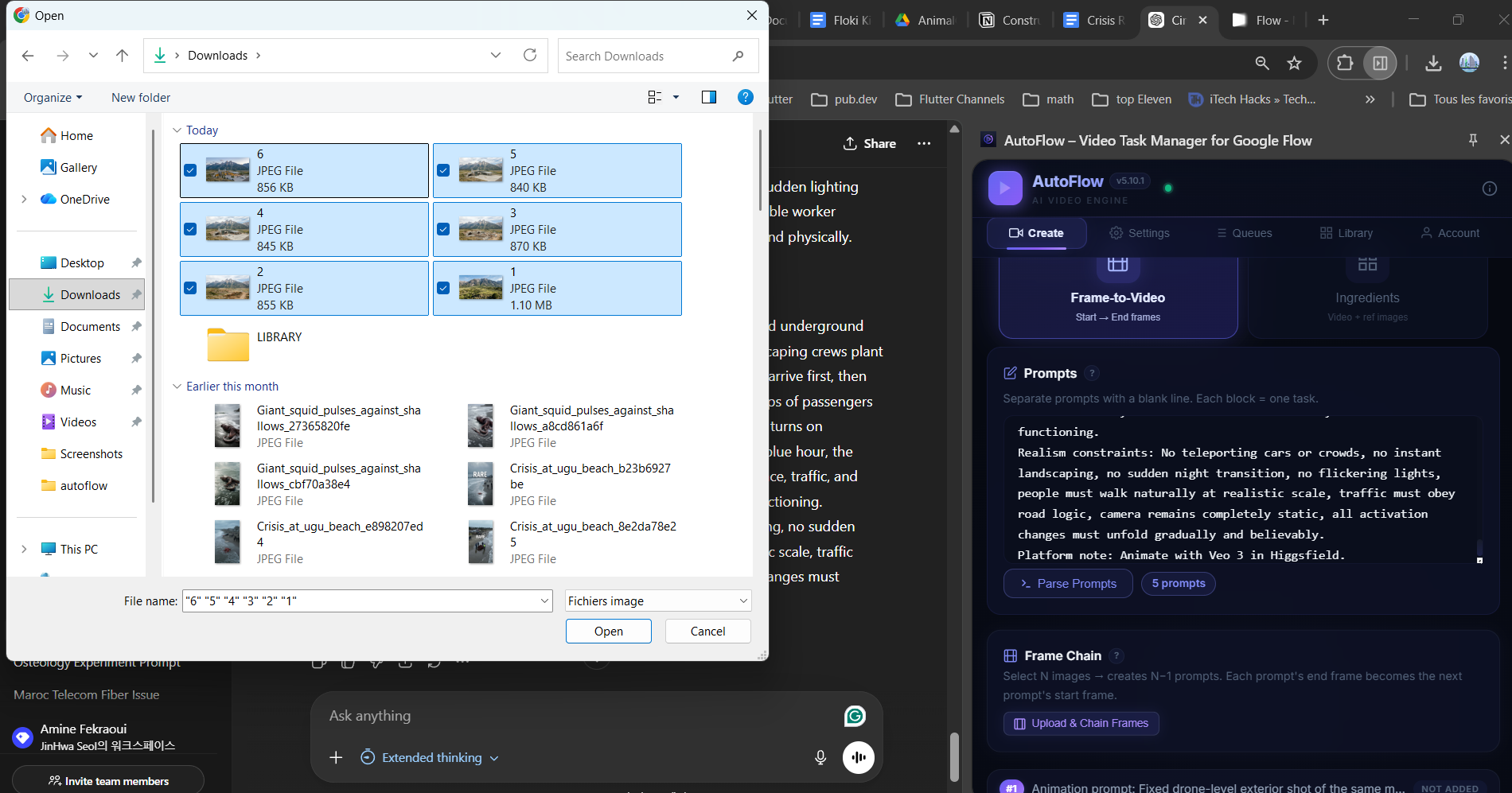
Select all 6 images from your Downloads — AutoFlow chains them automatically
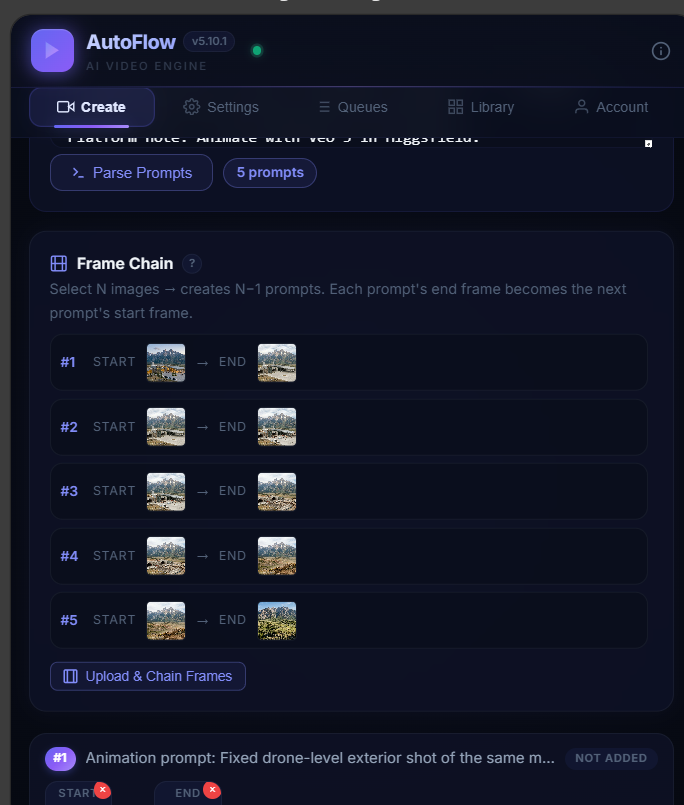
5 frame chain pairs created — each video transitions between two consecutive stages
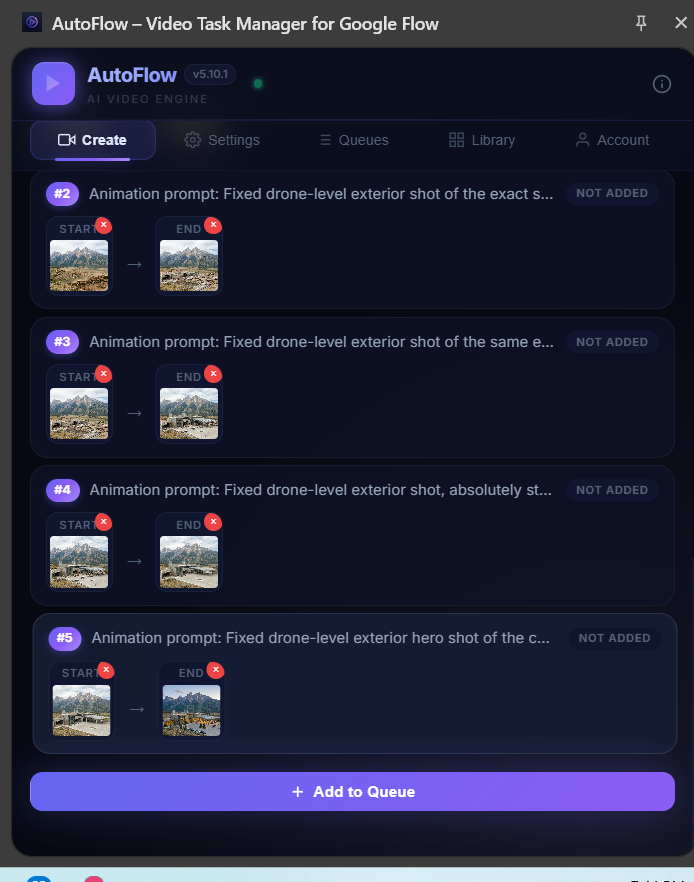
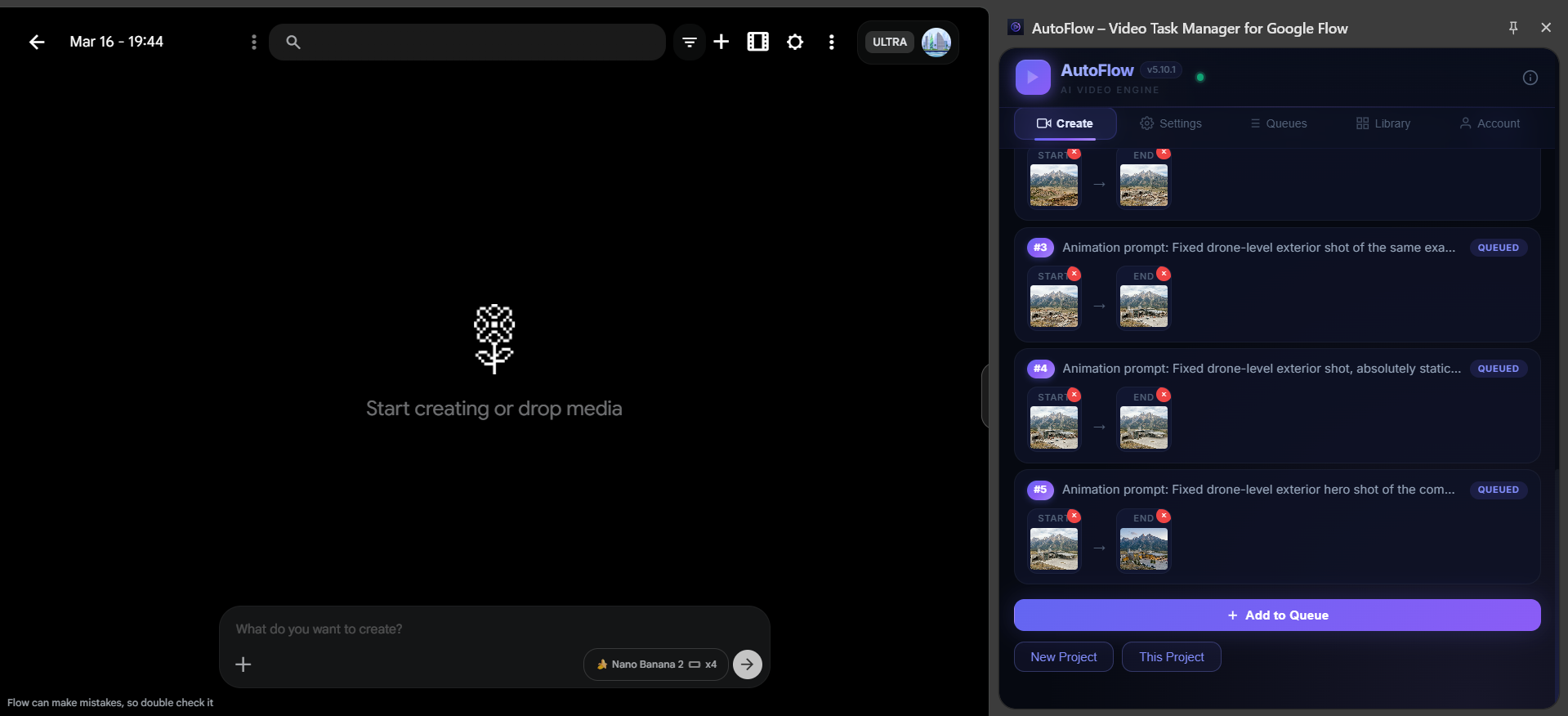
Click Add to Queue:
Step 4: Run & Monitor
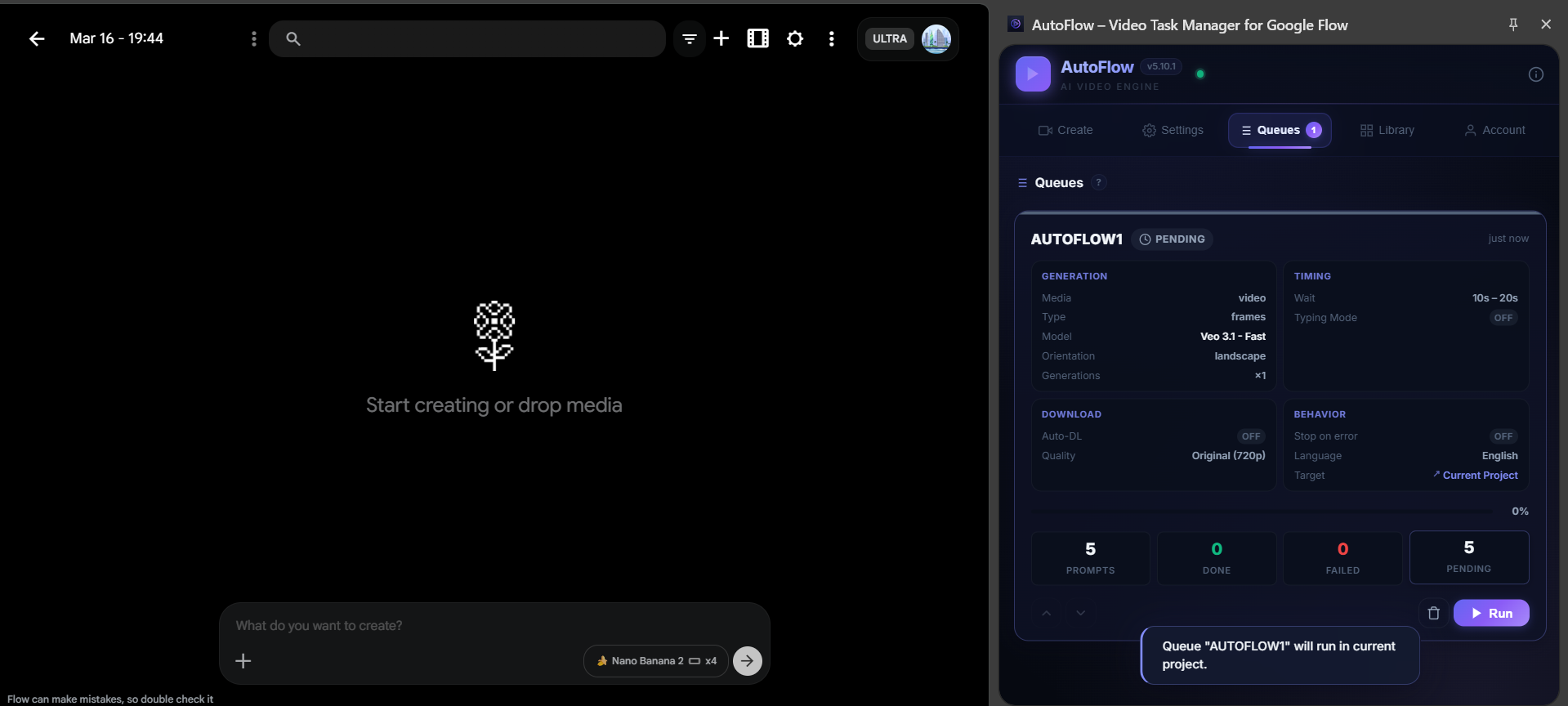
Switch to the Queues tab. You'll see your queue with all 5 frame-to-video prompts ready. Check the settings (Veo 3.1 Fast, landscape, 720p) and hit Run:
Queue ready: 5 prompts, Veo 3.1 Fast, landscape, auto-download off
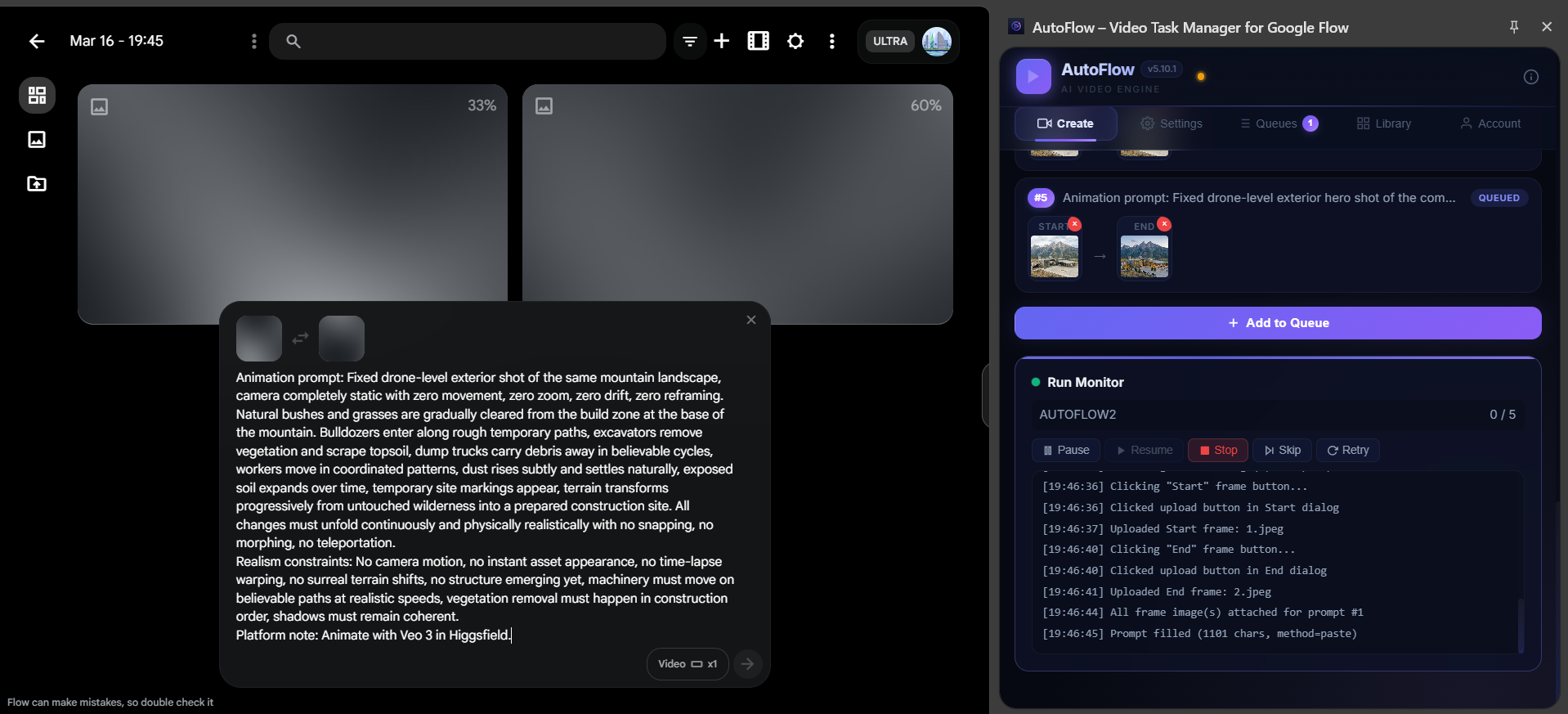
AutoFlow takes over completely. It uploads each start/end frame, pastes the animation prompt, clicks generate, waits for the video, and moves to the next one. You can watch everything happen in real-time:
Live Run Monitor — AutoFlow uploading Start/End frames and filling prompt automatically
✅ Queue finished — 5/5 done, 0 failed. All construction transition videos generated!
Step 5: Download from Library
Switch to the Library tab and click Scan Project. AutoFlow finds all 5 generated videos grouped by prompt. Select all and batch download:
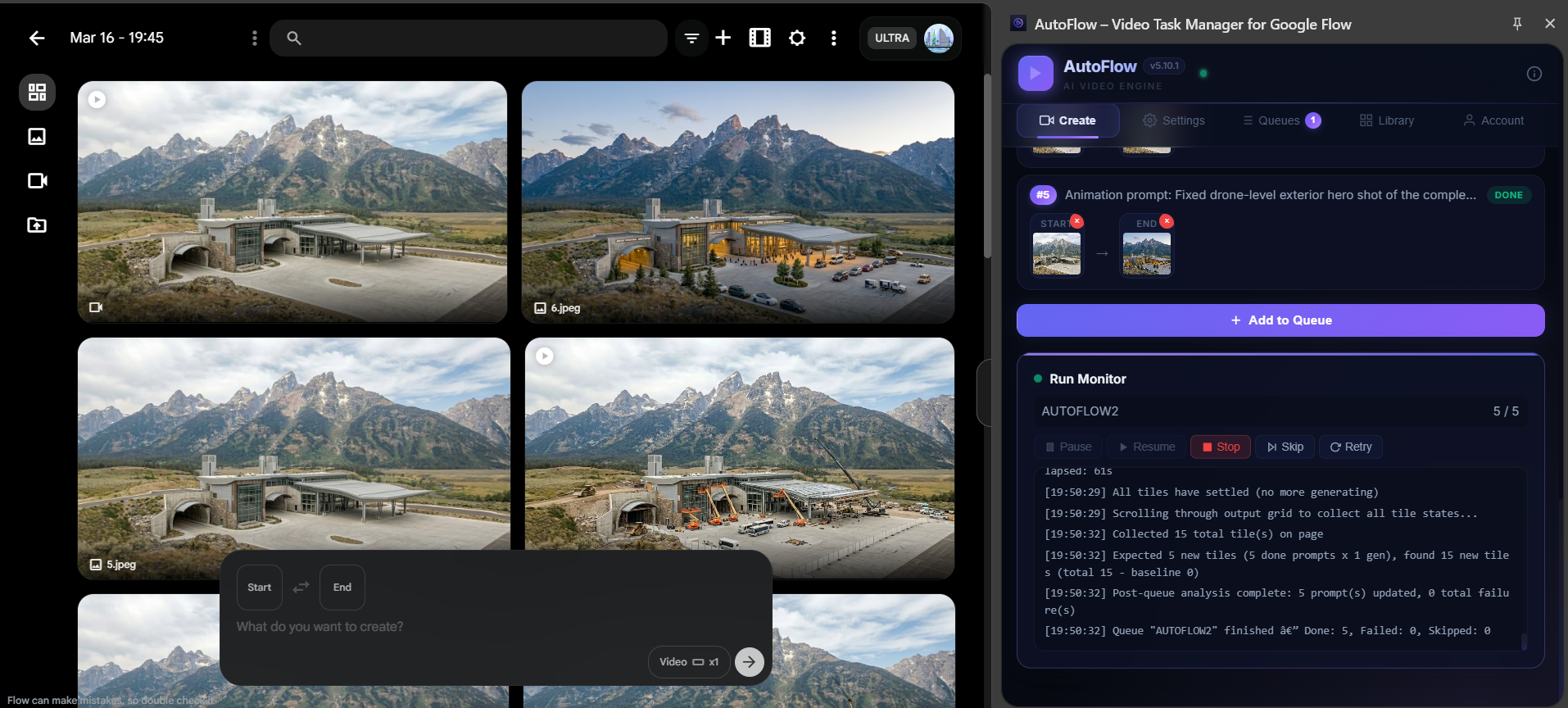
Library scan: 5 videos ready for download — each showing a construction stage transition
That's it! You now have 5 smooth construction time-lapse videos. Stitch them together in any video editor (CapCut, DaVinci, Premiere) for a complete raw-land-to-finished-building sequence.
💡 Pro Tips for Viral Content
- Try unique buildings. An "underground airport in a mountain" is way more interesting than a generic house. Think bold — floating hotel, underwater research lab, cliff-edge mansion.
- Use the same prompt style. The system prompt ensures camera consistency. Every image has the same drone angle, lens, and altitude — this makes the transitions seamless.
- Post as Shorts/Reels. Construction ASMR performs best as 15-60 second vertical videos. Crop and speed up as needed.
- Add ASMR audio. Layer construction sounds (concrete pouring, hammering, crane movements) for the full ASMR experience.
- Batch create. Use this workflow to create 5-10 different building types in one evening. More content = more chances to go viral.
Want to learn more about batch processing with AutoFlow? Or check our 25 best prompts for AI video.
❓ Frequently Asked
How long does the whole process take?
About 30-60 minutes. ~5 min for ChatGPT prompts, ~15 min for image generation, ~10 min to set up AutoFlow, and ~15-30 min for video generation (automated).
Does it cost anything?
ChatGPT and Google Flow are free to use. AutoFlow has a free plan with daily limits. For unlimited frame-to-video, use Pro.
Can I use different AI models?
Yes! Use Nano Banana 2 for images (best photorealism) and Veo 3.1 Fast for videos (most reliable). You can also try Veo 3 for higher quality.
What buildings work best?
Unique, dramatic structures get the most views: mountain airports, cliff mansions, underwater hotels, futuristic skyscrapers. Generic houses are less engaging.